Setting Up a Phone for Mum or Dad in Australia (Emergency, Scam Shield, Big Text)
An hour, a cup of tea, and this list — in this order — turns a new phone into a safer one: emergency within one press, words they can read, junk filtered before it rings, and the one habit that defeats every scam text in Australia.
Last updated: October 20, 2026
Before you start: this is a setup guide, not a sales page — it recommends settings and habits, not products, and it contains nothing to buy. Phone menu names vary a little between brands and models; where they do, we say so. Every Australian number and program named here was checked against official sources on the date above. If there is an emergency right now, call 000 first — the setup can wait.
The best gift is not the phone. It is the phone already set up — big text they can read, one press between them and help, and a scam text with nowhere to land. This guide is the setup we would do, in the order we would do it, for our own parents in Australia: emergency first, then comfort, then the scam shield. Seven setups, roughly an hour with a cup of tea, and you can do most of it before the phone is even wrapped.
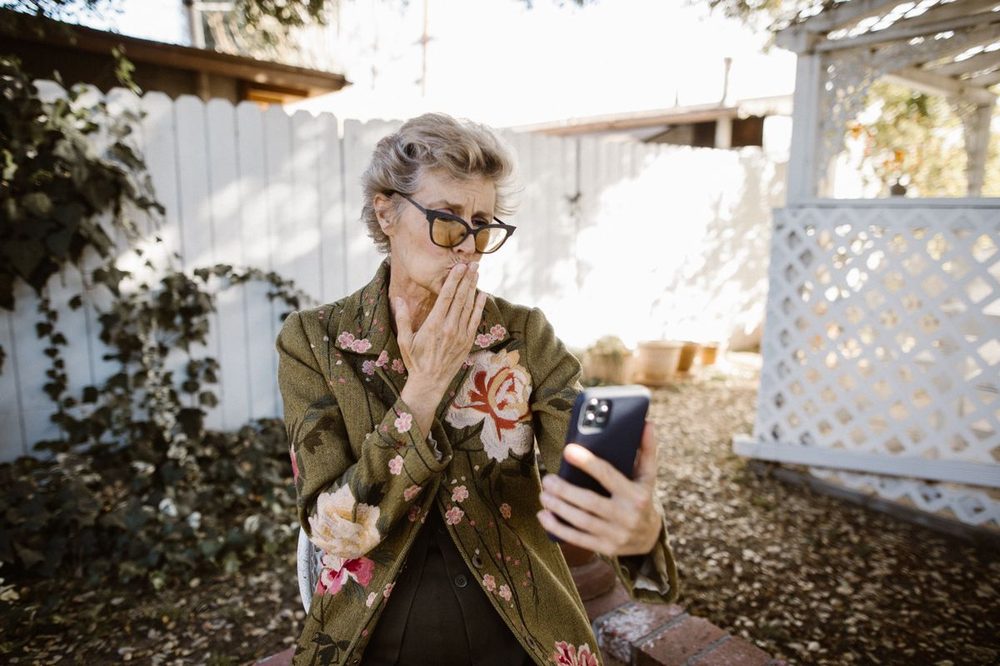
A word about whose hands do this. Set the phone up with Mum or Dad where you can, and where distance makes that impossible — the daughter in Brisbane, the parents in Cairns — do the technical parts yourself and walk through the finished phone together on a video call or your next visit. The aim is a phone that feels like theirs, not a device that was done to them. Every step below says plainly where iPhone and Android differ, because in most families the two are mixed.
- Emergency: 000 within one press, emergency contacts on the lock screen.
- Medical ID: the note paramedics can read without the password.
- Big text & display: words they can read without hunting for glasses.
- A simple home screen: only the apps they actually use.
- The scam shield: the filters that quietly eat the junk.
- The official apps & the one route: myGov and Aus Post, and the 30-second habit.
- The numbers & the register: Do Not Call, saved family numbers, and the paper list.
Setting up the Christmas phone: if this phone is going under the tree, you hold an advantage worth using — do the setups before it is wrapped. A phone that comes out of the box already speaking big text, already carrying the family numbers, already shielded from junk is a phone that gets loved from its first hour, and nobody has to spend Christmas Day lost in settings menus. Everything below can be done before the wrapping paper goes on; save only the practice run-through for the day itself, where it makes a lovely excuse for a Boxing Day visit.
1. Emergency First: 000 Within One Press
Australia's emergency number is 000 (triple zero) — for police, fire and ambulance. Every phone sold here can ring it, even without credit, and even from the lock screen. Two things to set up so that help never depends on unlocking a phone under stress.
Emergency SOS. On iPhone, pressing the side button five times quickly (or holding the side and a volume button — the setting is under Settings, then Emergency SOS) starts a countdown and then calls 000 automatically. On many Android phones, pressing the power button five times does the same (look under Settings, then Safety & emergency, then Emergency SOS; menu names vary by brand). Turn it on, and — this matters — practise it once together, cancelling during the countdown, so the sound and the screen are familiar rather than frightening.
Emergency contacts on the lock screen. Add two family numbers as emergency contacts. These can be rung from the lock screen without the passcode — by your parent in a panic, or by a kind stranger or a paramedic after a fall. Save them with names that explain themselves ("Sarah — Daughter") and add the same numbers to the phone's Medical ID in the next step. Finally, teach the one sentence that goes with all of it: if it is life, limb or a crime happening now, it is always 000 first — never a family group chat. Our full emergency SOS setup guide has the tap-by-tap screens for both phone types, including how to stop accidental calls.
2. Medical ID: The Note That Speaks When They Can't
Medical ID is a small page of health essentials — conditions, medicines, allergies, blood type if known, emergency contacts — that first responders can open from the lock screen without the phone's passcode. It is not a medical record and it replaces nothing; it is the card in the wallet, moved to the phone.
On iPhone it lives in the Health app under Medical ID; set "Show When Locked" on, and add the emergency contacts from step 1. On Android, look under Settings, then Safety & emergency, then Medical information (again, names vary a little between brands). Fill it in together, reading each line aloud — it is a good conversation anyway — and keep it honest and current: after any medication change, update it the same week. A calm note belongs here too: this information is visible to anyone holding the unlocked-by-emergency phone, which is the point, so include what's needed for care and leave out everything else.
3. Big Text & Display: Readable Without Glasses
Comfort is a safety feature: a parent who can read the screen can check the message, spot the wrong number, and press the right button. Set the text size generously now, while you're here, rather than leaving them squinting at defaults.
On iPhone: Settings, then Accessibility, then Display & Text Size, then Larger Text — drag until ordinary messages are easy. On Android: Settings, then Display, then Font size (and Display size, which enlarges everything, not just words). Our step guides — increase text size on iPhone and make text bigger on Android — show every screen, and our phone accessibility settings guide covers the rest of the comfort kit: bolder text, louder and clearer calls, hearing-aid pairing, and the flash alert for the doorbell moments a ringtone misses.
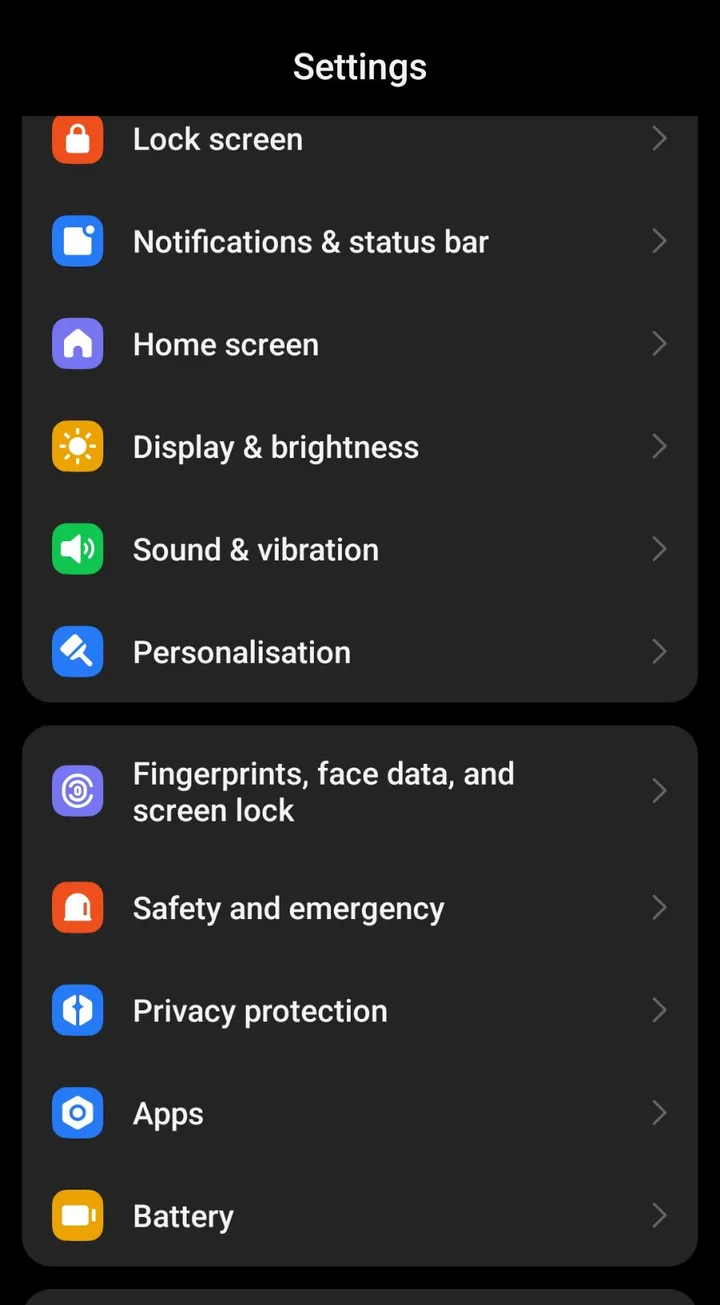
While you're in settings, do the two-minute extras: turn the ringtone volume up and pick a ringtone that cuts through a television; set the screen to stay on a little longer before it sleeps; and turn on automatic updates, so the phone quietly patches itself without anyone having to think about it.
4. A Simple Home Screen: Only What They Use
A new phone arrives wearing thirty apps nobody asked for, and every unfamiliar icon is a small daily friction — and, occasionally, a wrong tap. Editing the home screen down is the kindest ten minutes of the whole setup. One screen, the big friendly essentials: Phone, Messages, Camera, Photos, WhatsApp (or their family app), the Aus Post app and myGov from step 6, and the weather. Everything else lives in the app drawer, one swipe away, un-deleted but out of sight.
Our declutter a senior's phone guide shows the finished result — this is a real home screen from a real senior's phone, arranged exactly this way:
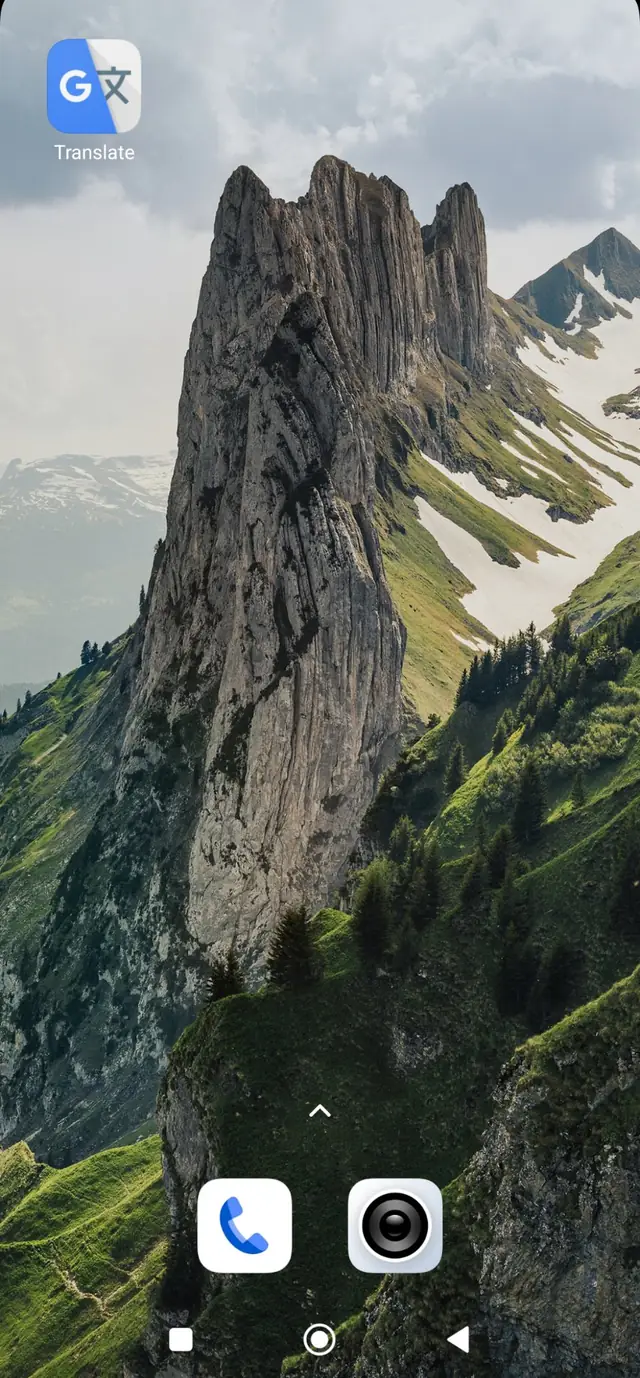
Set the wallpaper to a family photo while you're at it — it sounds like decoration, and it is secretly identification: a phone whose lock screen is unmistakably theirs is a phone that gets handed back when it's left at the club.
5. The Scam Shield: Filters That Eat the Junk
Now the settings that guard them on the days you're not there. On iPhone: Settings, then Messages — turn on Filter Unknown Senders, so texts from numbers not in contacts file themselves into a separate list; then Settings, then Phone — turn on Silence Unknown Callers, so unknown numbers go quietly to voicemail instead of ringing. On Android: open the Google Messages app, tap your profile picture, then Settings — turn on Spam protection; in the Phone app's settings, turn on Caller ID & spam and, if offered, Filter spam calls. Brand menus vary slightly; the words "spam" and "filter" are your signposts.
Explain what these do, out loud, in plain words: "Most junk will now land in a folder you never have to open, and strange numbers won't ring — they'll leave a message if they're real." That last sentence is the real shield, because it converts every unknown call into the safe pattern from our who called me in Australia guide: if it mattered, they left a message; if they didn't, it didn't. And give them the counterweight too — the calls that do get through wearing a familiar name still get the family rule: no money decision is ever made because of a call or a text. Our full scam texts in Australia guide is the one to read together next; it is written for exactly this kitchen table.
6. The Official Apps & the One Route
Install two official apps and put them on the home screen side by side: myGov and Aus Post. Then teach the One Route, and practise it twice, together, with a made-up example: a worrying text arrives → we close it → we open the real app with our own finger → if the problem is in there, it's real; if it isn't, it never existed. This 30-second check defeats every scam text in Australia, including the ones wearing the new 'Unverified' label that our 'Unverified' messages guide explains in plain words. Set up myGov with them, on their details, with a password they choose and write down in their own book at home — never a password you keep for them, and never a sign-in you complete through a link anyone sent. Add their bank's official app only if they'll genuinely use it, and set its alerts on, so real transactions announce themselves.
Finish this step with the family agreement, said as a game rather than a lecture: "In this family, no text or call can ever spend our money. Anything about money gets a call to a number we already know — or a call to me first." Parents who feel trusted tell you what arrived. That flow of "look what I got today" messages is the best alarm system a family can own.
7. The Numbers, the Register & the Paper List
Last setup, three small things that pay off for years. Save the family properly: every close number saved with a photo and a plain name — "Michael — Son" beats a bare mobile number at 2 a.m. Register their number on the Do Not Call Register: free, government-run by the ACMA, at donotcall.gov.au or by calling 1300 792 958 from their phone; telemarketers must then stop, though it takes up to 30 days to bite and it stops sales calls, not criminals. Set up voicemail with a greeting in their own voice — a working voicemail is what makes "let it ring out" a complete strategy instead of a worry.
Then make the paper list together and put it on the fridge: 000 for emergencies; the bank's number from the back of their card (write that instruction, not a number you found online); the Scams and Identity Theft Helpdesk 1800 941 126; IDCARE 1800 595 160; and your own number in the biggest handwriting on the page. Paper works when batteries don't, and it never asks for a password.
The handover moment: resist the tour of everything. Show them three things only — how to answer and make a call, how to read and send a message, and the One Route for anything worrying — then put the kettle on. A phone learned in three confident moves gets used; a phone demonstrated for an hour gets feared. Ring them on it that evening, on purpose, so the first call their new phone ever takes is a happy one. And if you're choosing the phone itself rather than setting one up, our guide to choosing a phone for a senior covers sizes, buttons and budgets honestly.
The First Week: Three Small Follow-Ups
Setup day plants the garden; the first week waters it. Day one or two: ring them on the new phone about something ordinary and lovely — not a test, just a chat — and ask what felt easy and what felt fiddly while it's fresh. Day three or four: ask whether any odd texts or calls arrived, and look at the spam folder together (in person or by talking them through it) — a clean folder is a small celebration, and a caught scam text is a chance to admire the shield working. End of the week: adjust the one or two things that annoyed them — a font up one notch, a ringtone changed, an app moved. A phone tuned after a week of real use fits like a shoe after the first walk. And put a monthly habit in both diaries: a standing call where anything digital and puzzling gets aired. Phones keep changing; the family's routine doesn't have to.
The 10-second version: emergency first, big text second, scam shield third — an hour of setup is worth a year of peace.
The golden rule: set it up so that help is one press away, family is one tap away, and a scammer has no way in at all.
Frequently asked questions
- iPhone or Android — which is easier for Mum or Dad?
- The one the family uses. If you and your siblings are iPhone people, an iPhone means every 'how do I…' question can be answered from your own pocket, screen for screen. The same is true in reverse for Android families. Both do everything in this guide — big text, emergency SOS, spam filtering — and both are equally safe once set up. Choose by support network, not by marketing: the best phone for a beginner is the one their favourite helper knows by heart.
- Should I set up myGov for them, or let them do it?
- Do it together, with them driving wherever they can. Sit beside them (or video-call), let them choose their own password and write it in their own book that stays in their home, and never complete a myGov setup through a link anyone sent — always from the official app or by typing my.gov.au yourself. The goal is a parent who can open myGov alone with confidence, because the One Route — close the text, open the real app — only protects them if the app feels like theirs. If they get stuck locally, the free Be Connected program at libraries and community centres helps older Australians with exactly this, in person.
- How do I make the phone loud enough for someone with hearing loss?
- Start with volume and sound: ringtone up, and in the accessibility settings look for hearing options — on iPhone under Settings, Accessibility, Audio/Visual; on Android under Settings, Accessibility, Hearing enhancements (names vary). You can also turn on the LED flash alert so calls announce themselves with light, pair hearing aids directly with many modern phones, and place a photo-and-name contact card for close family so a ringing phone shows a face, not just a number. Our phone accessibility settings guide walks through each option step by step.
- What if Dad keeps tapping scam texts anyway?
- Change the environment, not the lecture. Turn the filters up: Filter Unknown Senders and Silence Unknown Callers on iPhone, or Spam protection in Google Messages on Android, so most junk never rings or lands in the main inbox. Put the myGov and Aus Post apps on the home screen and practise the One Route together with a harmless example. Put the paper list on the fridge, with the rule written on it: no text can spend our money. And agree that forwarding you a screenshot of anything odd is a family habit, not a confession — parents who feel trusted keep telling you what arrived, and that warning flow protects them more than any single setting.
- Can I track Mum's phone so I know she's safe?
- Only with her clear agreement — always. Location sharing (through the phone's own family settings) can be a comfort when it's chosen together and talked about openly: why it's on, who can see it, how to pause it. Set up secretly, it breaks the trust that every other safety habit in this guide depends on, and a parent who feels monitored stops sharing the things you actually need to hear. If the worry is falls or emergencies, the kinder tools are the ones in this guide: Emergency SOS, lock-screen emergency contacts, and Medical ID — help that speaks for her when she can't, without watching her when she can.
- Do I need to buy antivirus for their new phone?
- For most seniors, no. A modern iPhone or Android, kept up to date with automatic updates switched on and apps installed only from the official App Store or Play Store, already carries strong built-in protection. The paid antivirus pitch — often delivered by a pop-up claiming the phone is 'infected' — is itself a common scare tactic aimed at beginners. The settings that genuinely matter are the ones in this guide: updates on, spam filters on, official apps only, and the One Route for anything that asks for money or a password.
- Is 000 the only emergency number to teach — what about 112?
- Teach 000 as the number — police, fire, ambulance — because that is the number every Australian service, sign, and triple-zero campaign uses, and in a panic the famous number is the one that surfaces. It is worth knowing that 112 also works from mobile phones in Australia as an international emergency number, and phones can reach emergency services from the lock screen even without credit. But keep the teaching simple: one number, taught well — 000 — plus Emergency SOS set up so the phone can dial it even if they can't.
- We're buying Mum a phone in the Black Friday sales. What should we set up before handing it over?
- Set up the safety and comfort layers before the phone changes hands, in this order. First, Emergency SOS and lock-screen emergency contacts, so help is one press away. Second, Medical ID. Third, big text and a loud, clear ringtone, so the phone is readable and hearable from day one. Fourth, a simple home screen carrying only the apps she will actually use. Fifth, the scam shield: spam filtering switched on, unknown callers silenced, and the official myGov and Aus Post apps installed side by side. Then save the family numbers with photos, register the number on the Do Not Call Register at donotcall.gov.au, and write the paper list for the fridge. This guide walks through every one of those steps — the shopping is the easy part; the hour of setup is the real gift.