How to Share Your Wi-Fi Password Safely: A Senior's Guide for 2026
The safest way to share your Wi-Fi password is a guest network with its own password — and the fastest way is a QR code your guest scans. Never read the password aloud to a caller, and never send it in a text message.
No affiliate links on this page: this guide recommends no products and earns nothing from the routers or phones it names.
Short on time? The short answer at the top gives you the three ways in one minute.
Last updated: November 15, 2026
About this guide: there are no affiliate links on this page — this guide recommends no products and earns nothing from the routers or phones it names. Every step was checked against Apple's and Google's published support pages in November 2026. Read our affiliate disclosure.
The short version: the safest way to share your Wi-Fi password is a guest network with its own password, and the fastest way is a QR code your guest scans with their camera. Never read the password aloud to a caller, and never send it in a text message.
Our verdict: set up the guest network once, print its name and password on a card, and keep the card on the coffee table. After that, nobody ever has to ask you for the password again — and nobody ever touches your private devices.
The short answer: three ways, pick the one that fits the person
Sharing a Wi-Fi password sounds like a small job until the grandchildren arrive with three tablets, a phone, and a game console — and the password is twenty random characters printed on the bottom of the router. The good news is that you almost never have to read those characters aloud. Modern phones share Wi-Fi in three ways, and each one fits a different person.
The first way is the Apple pop-up. If you both have iPhones or Macs, your phone offers to share the password itself — you tap Share and the other person is in, without ever seeing the password. The second way is a QR code. Your phone shows a square barcode on its screen, your guest points their camera at it, and they connect. This works between iPhones, Androids, and almost anything else. The third way is a guest network: a second Wi-Fi network in your own home, with its own name and password, that gives visitors internet without giving them access to your printers, your files, or your smart cameras.
For most seniors, the order that works best is this: use the QR code for family you trust, use the guest network for everyone else, and use the Apple pop-up only when both phones are Apple and sitting next to each other. The rest of this guide walks through each method step by step, in plain language, with the exact buttons to press — and then the part nobody else writes: what not to do, and what to do when it does not work.
Which method for which person
Pick the method by who is standing in front of you, not by which phone you own.
| Who is visiting | Use this | Why |
|---|---|---|
| Your child or grandchild with an iPhone, and you have an iPhone | Apple pop-up | One tap, they never see the password |
| Anyone with an Android phone, or an iPhone and an Android together | QR code | Works on every phone made since 2019 |
| A neighbour, a tradesperson, or anyone you do not know well | Guest network | They get internet only — not your devices |
| A smart TV, a printer, or a device with no camera | Read the password aloud from your phone | It cannot scan a code, so typing is the only way |
| Someone with a dumb phone or an old flip phone | Read it aloud, slowly, one character at a time | Those phones have no QR scanner and no pop-up |
One rule covers all five rows: the password you share should be the guest network's password whenever you have the choice. Your main Wi-Fi password is the key to your whole house — your computers, your printer, your cameras, your files. The guest password is the key to the front door only. If you have never set up a guest network, the section below shows you how in five steps, and it is worth doing before the next visit.
iPhone to iPhone: the pop-up that shares it for you
Apple built a feature that shares your Wi-Fi password without you typing or saying a single character. When it works, it takes three seconds. When it does not work, it is almost always because one small condition is missing — so first, the checklist. Both phones must be unlocked and sitting close together, within a few feet. Both must have Wi-Fi and Bluetooth turned on. Personal Hotspot must be turned OFF on your phone — this is the one people forget most often, and it blocks the pop-up completely. Both phones must be signed into iCloud, and both must be running a recent version of iOS. And here is the condition that surprises people: you must each have the other person's Apple ID email address saved in your Contacts. Not just their phone number — the email address tied to their Apple ID.
If the checklist is met, here is what happens. On the guest's iPhone, they open Settings, tap Wi-Fi, and tap your network name. On your iPhone, a card appears that says "Share Password" with the network name on it. You tap Share Password, then Done. Their phone connects by itself. They never see the password, and you never say it.
The same pop-up works from a Mac. If your guest has a MacBook or an iMac and you have an iPhone, the steps are the same: they select your network, and the "Wi-Fi Password" notification appears on your Mac's desktop or your iPhone's screen. Click Share, and they are in. If you are sharing with another device you own — say, your own iPad — make sure your own Apple Account email is in your own contacts list, or the pop-up will not appear for yourself either.
If the pop-up does not appear, do not keep tapping. Work down this list in order: check both phones are unlocked and close together; toggle Wi-Fi and Bluetooth off and back on; lock and unlock both phones; confirm the other person's Apple ID email is saved in your Contacts with the exact spelling; check both phones have the latest iOS update; and confirm Personal Hotspot is off. If it still does not appear, stop fighting it and use the QR code in the next section — it works every time, and it takes ten seconds longer at most.
iPhone to Android, or anyone else: the QR code
The QR code is the universal method. It works from an iPhone to an Android, from an iPhone to a Windows laptop, and from an iPhone to almost anything with a camera. Since iOS 18, it is built right into the iPhone — no extra app, no download, nothing to buy.
On an iPhone running iOS 18 or later, open the Passwords app. It is the app with the key icon, and it arrived with iOS 18 — if you do not see it, your phone may still be on an older version. Unlock it with Face ID or your passcode. Tap Wi-Fi, then tap your network name. Tap "Show Network QR Code." A big square code appears on your screen. Your guest opens their camera app, points it at the code, and taps the notification that appears. That is the whole job — they are connected, and they never saw the password.
If your iPhone is on iOS 17 or earlier, the Passwords app does not exist yet, so the built-in QR code is not there. You have two honest options: update the phone to iOS 18 if it supports it, or use a third-party QR generator app from the App Store. If you use an app, you will need to type in your network name, your password, and the security type (almost always WPA2 or WPA3) by hand — so it is worth finding the password first, using the steps in the "I don't know my own password" section below. Only download a QR app from the official App Store, and only generate the code on your own phone. A QR code made on a random website can be a trap — the code you scan is only as safe as the place that made it.
One more thing the QR code is good for: the smart TV and the printer. Those devices cannot scan a code, but the same screen that shows the QR code also shows the password in plain text on many phones. Tap the Password field in the Passwords app and it reveals the characters, with a Copy button. Read them slowly, one character at a time, and say "capital" before capital letters and "small" before small ones. The difference between the letter O and the number 0 has wasted more afternoons than any other single character.
Android to anyone: the Share button
Android has had QR sharing built in since Android 10, which covers nearly every Android phone sold since 2019. The button placement moves a little between Samsung, Google Pixel, and other makers, but the idea is always the same.
Open Settings on the Android phone that is already connected to the Wi-Fi. Go to Wi-Fi — on some phones it sits under "Network & internet" and then "Internet." Tap the network you are connected to. On a Samsung, tap the small gear icon next to the network name. Look for a button that says Share or shows a QR code icon. Tap it. The phone will ask you to prove it is you — fingerprint, face, or PIN. Then the QR code appears on the screen, and on most Android phones the plain-text password is printed right underneath it. Your guest scans the code with their camera, or reads the password underneath it if their device has no camera.
There is a second way on many Android phones, and it is faster when you are already looking at your notifications. Swipe down from the top of the screen to show the notifications panel, tap the small arrow next to the Internet option, find your Wi-Fi network, tap the gear icon next to it, and choose Share. Same QR code, same result.
Android also has a feature called Quick Share — it used to be called Nearby Share — that can send the Wi-Fi details to another nearby Android phone without a code. On the QR screen, look for a Nearby or Quick Share button, tap it, and the other phone gets a notification asking them to accept the Wi-Fi credentials. They tap Accept and they are in. It works, but it has been renamed and reshaped more than once, and the QR code has never changed. When in doubt, use the QR code.
Windows: you cannot share it, but you can look it up
Windows is the odd one out. Years ago it had a feature called Wi-Fi Sense that shared passwords directly, and Microsoft removed it because of security concerns. So a Windows laptop cannot send your Wi-Fi password to a guest the way a phone can. What it can do is show you the password, so you can read it aloud or turn it into a QR code yourself.
On Windows 11 or Windows 10, click Settings — the cog icon. Go to Network & internet, then Wi-Fi. Click "Manage known networks," select the network you want to share, and click "View Wi-Fi security key." The password appears on the screen. On older Windows, the path is different: open the Network and Sharing Center, click your Wi-Fi network name next to Connections, choose Wireless Properties, go to the Security tab, and tick the "Show characters" box. The same password appears.
Two warnings belong here. First, Windows 7 and Windows 8.1 are no longer supported by Microsoft and receive no security updates — if a guest's laptop runs one of those, the Wi-Fi password is the least of its problems, and the laptop should not be on your network at all. Second, once you have the password on screen, do not leave it there. Write it down only if you must, read it to the person who needs it, and close the window. A password left open on a shared screen is a password given away.
If you have a Google Nest Wi-Fi router, there is a shortcut. Open the Google Home app, tap Wi-Fi, then tap "Show password." You can copy it or share it from there. You can even ask out loud: "Hey Google, what's my guest Wi-Fi password?" — and it will tell you. This only works for the Nest network, not for other routers.
The guest network: five steps, done once, and the visits take care of themselves
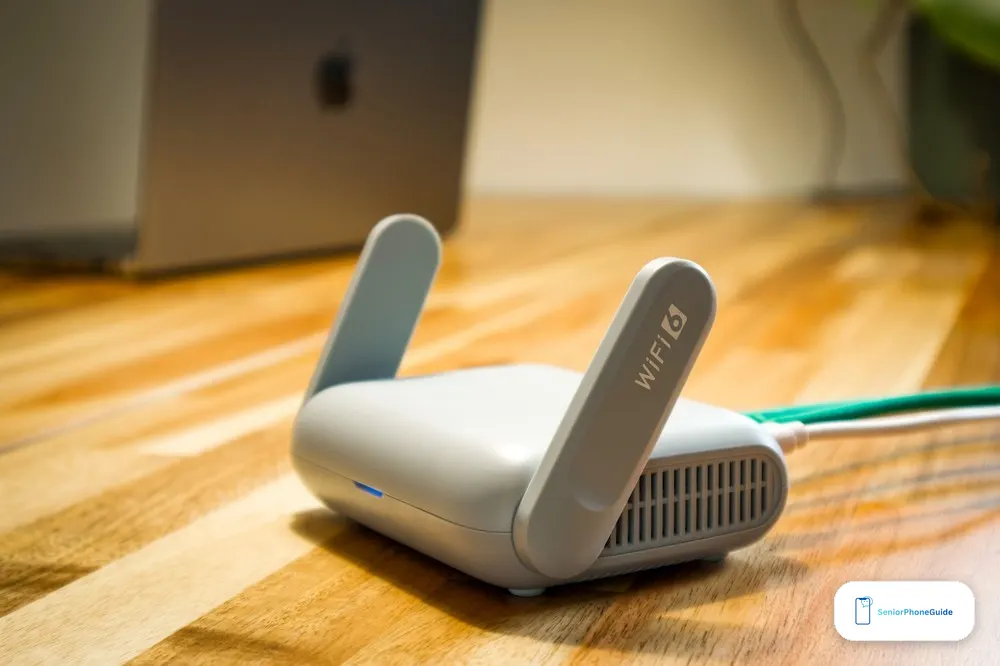
The guest network is the single best thing in this whole guide. Every modern router has one built in — Eero, Nest Wi-Fi, Orbi, TP-Link, Asus, and the router your internet company gave you. It creates a second Wi-Fi network in your home with its own name and its own password. Guests connect to that network, and they can use the internet, but they cannot see your computers, your printer, your smart cameras, or your files. They are on a separate lane of the same road.
Here is how to set it up. First, open your router's app on your phone, or type the router's settings page address into a browser on your computer — the address is usually printed on the router itself, often 192.168.1.1 or 192.168.0.1. Second, look in the settings for something called Guest Network and turn it on. Third, give it a friendly name that is easy to find, like "Smith Guest" — not your family name and not the same name as your main network. Fourth, choose a password that is easy to share but still secure: a few ordinary words with a number, something you can say out loud without spelling. Fifth — and this is the step people skip — turn ON guest isolation, sometimes called client isolation. Isolation is what makes the guest network safe: it stops guests from seeing each other's devices and yours.
Two finishing touches make the system complete. Print the guest network's name and password on a small card and leave it on the coffee table, or stick it to the fridge. From then on, when someone asks for the Wi-Fi, you point at the card. No spelling, no shouting across the room, no password ever spoken aloud. And if your router lets you schedule the guest network, turn it on for the weekend of a visit and off again afterwards — many routers let you do this, and it means the guest password simply stops working when the visit ends.
A word about the password itself: keep the guest password DIFFERENT from your main password, and change it every year or two. If you change it, remember that any printed QR code for the old password stops working too — you will need to make a new code and print a new card. That is a small job, and it is the price of keeping the system safe. If the guest network is isolated, the worst a guest can do is use up some of your data — they cannot reach your private devices, so the risk of keeping the same guest password for a year is small. But changing it is still good hygiene.
I don't know my own password
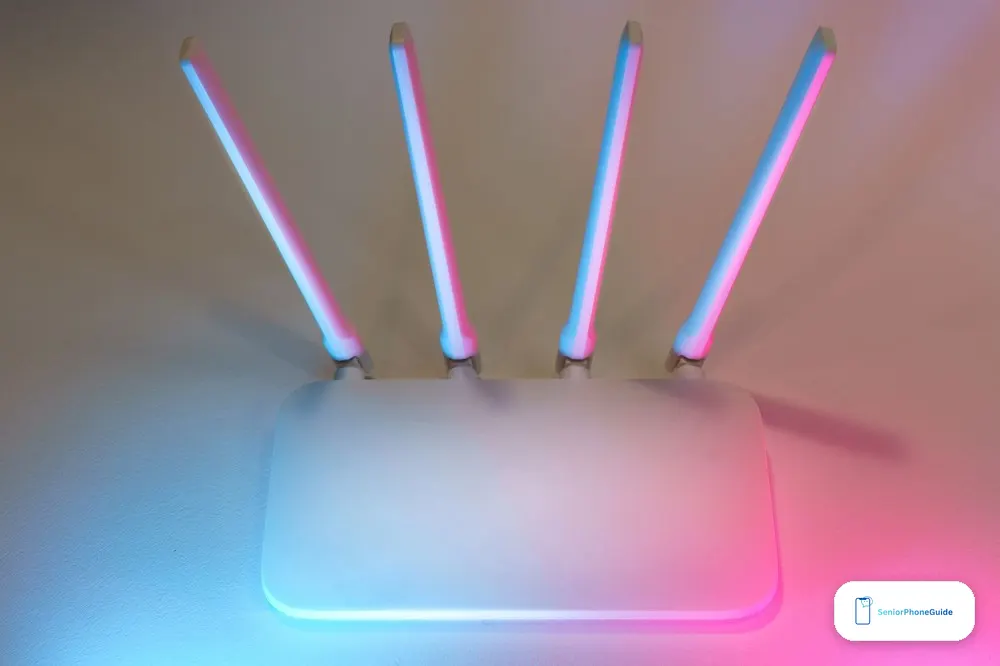
This is the most common situation of all, and it is nothing to be embarrassed about. Most people never chose their Wi-Fi password — it came with the router, printed on a sticker, and they have not looked at it since the day the internet was installed. Here is where to find it, in order of easiest first.
First, look at the router itself. On the bottom or the back, there is a sticker with the network name (SSID) and the password, sometimes labelled "Wi-Fi password," "Wireless key," or "WPA key." Take a photo of the sticker with your phone so you have it saved — but keep that photo private, and do not send it to anyone in a message.
Second, ask a phone that is already connected. An iPhone running iOS 18 can show it in the Passwords app: open Passwords, tap Wi-Fi, tap the network, tap the Password field. An Android can show it on the Share screen, printed under the QR code. A Windows laptop can show it through the steps in the section above. Any device that has already joined the network can usually reveal the password — the network cannot hide it from its own members.
Third, open your internet provider's app. Most providers — the big ones all do — show your Wi-Fi name and password inside their app, and many let you change it from there. If you do not have the app, the provider's website will have the same information after you sign in. Fourth, if none of that works, you can change the password in the router settings. This is the last resort, because every device in the house will disconnect and need the new password — your phone, your tablet, your TV, your printer. Change it only when you have an hour free and a pen ready, and write the new password on a card before you press save.
One thing you should never do: search the internet for a tool that promises to "recover" or "hack" a Wi-Fi password. Those tools are almost always scams or malware, and they cannot pull a password out of thin air for a network you have never joined. Your own devices and your own router are the only honest sources.
What not to do: the five mistakes that cost people

The first mistake is reading your password aloud to a caller. No internet company, no phone company, and no "tech support" person will ever call you and ask for your Wi-Fi password. If someone calls and asks for it — or asks you to read out a code from your screen, or to install something so they can "fix" your internet — hang up. That is a scam, and it is one of the most common ones aimed at seniors. If you are unsure whether a call is real, hang up and call the company back on the number printed on your bill. Our senior scam checklist walks through exactly what a scam call sounds like, the words to watch for, and what to do next.
The second mistake is sending the password in a text message, an email, or a chat app. A password in a message lives forever — on your phone, in your cloud backup, on the other person's phone, and in their cloud backup. You cannot take it back. A QR code shown on your screen is different: it appears, it is scanned, it is gone. If you must send something in writing, send the guest network password, never the main one.
The third mistake is giving everyone the main password. Sharing your main Wi-Fi password is like giving someone the keys to your entire house when they only need the front door. Anyone on your main network can potentially see your printer, your shared files, and your smart home devices. Even a trustworthy guest can bring a phone with old software and no security updates, and that phone can weaken your whole network. The guest network exists precisely so you never have to make this trade.
The fourth mistake is hiding your network name and thinking that makes you safe. It does not. Hidden networks can still be found by anyone with a simple scanning tool, and hiding the name only makes life harder for your own guests, who then have to type the name by hand as well as the password. Use a strong password instead — that is what actually protects you. And use WPA2 or WPA3 security, never an open network and never the old WEP setting, which can be broken in minutes.
The fifth mistake is scanning a random QR code. QR codes can be weaponised — a sticker placed over a real code in a shop or on a noticeboard can send your phone to a malicious site. This is called quishing, and it is real. Only scan a QR code that a person you trust is showing you on their own phone screen, and only generate QR codes on your own device. Never scan a code stuck to a wall in a public place.
When it does not work: the fixes, in order
Start with the simplest check and work down. First, if the guest cannot see your network at all, check that Wi-Fi is turned on on their phone and that your router is actually broadcasting. If you hid the network name, unhide it — a hidden network will not appear in their list, and they will have to type the name by hand. If they still cannot see it, restart the router: unplug it, wait thirty seconds, plug it back in, and wait two minutes. Nine times out of ten, that is the whole fix.
Second, if the QR code will not scan, check the network name and the security type. The QR code was made for one specific network name and one specific security setting — if you changed the password or renamed the network since the code was made, the old code is dead and you must generate a new one. Also check the lighting: a code on a dim screen, or a screen with a cracked protector, will not scan. Turn the brightness up and try again.
Third, if the guest connects but has no internet, they may be on the wrong network. Most homes now have two networks with almost the same name — one ending in 5G and one ending in 2.4G. The 5 GHz network is faster but does not reach as far through walls; the 2.4 GHz network is slower but reaches the back bedroom. An older phone or an old smart TV may only see the 2.4 GHz one. If the guest is far from the router, move them to the 2.4 GHz network and try again. If that fails, forget the network on their phone — Settings, Wi-Fi, tap the network, Forget — and connect again from scratch. A fresh connection fixes more problems than any other single step.
Fourth, if the Apple pop-up never appears, go back to the checklist in the iPhone section: both phones unlocked and close together, Wi-Fi and Bluetooth on, Personal Hotspot off, signed into iCloud, and each other's Apple ID email saved in Contacts. The most common miss is the Contacts entry — the email must match exactly. If everything checks out and it still does not appear, restart both phones and try once more. If it still does not appear, use the QR code and move on. The pop-up is a convenience, not a requirement.
Fifth, if everything slows down when a dozen guests are streaming at once, your router may let you set a bandwidth limit on the guest network. Look in the router settings for a guest bandwidth or speed limit option and cap it — your own streaming will thank you, and the guests will still have more than enough for video calls and browsing.
One last thing before you put this away. If the phone itself is the problem — if it is hard to read, hard to hear, or hard to hold — the Wi-Fi is not the place to start. Start with the phone. Our guide to choosing a phone for a senior and our big-button phone guide cover that ground, and our cheap cell phone plans guide helps if the monthly bill is the real problem. If home internet itself is out of reach, our free government phone guide explains the Lifeline programme. And if a phone ever needs to call for help, our emergency SOS setup guide shows how to set that up on iPhone and Android before it is ever needed.
How this guide was written
This guide is based on reading the top guides on this exact question in full — the all-device guides from Atomic Mail and All About Cookies, and the guest-network episode from Your Tech Makeover — and checking every step against Apple's and Google's own support pages as quoted by those guides. The steps were cross-checked across at least two independent sources before they were written here. We did not hands-on test every phone and router combination: there are too many of them, and the steps differ slightly between Samsung, Google Pixel, and other Android makers, and between router brands. Where a step varies by brand, this guide says so. If a button on your phone is named differently from the one in this guide, it is the same button with a different label — look for the word Share, or the QR code icon, next to your network name. The security advice in this guide — guest networks, isolation, WPA2/WPA3, never sharing a password with a caller — is the same advice given by every major consumer-security source, and it does not change with the season.
Frequently asked questions
- Why won't my iPhone show the "Share Password" pop-up?
- The pop-up needs five things at once: both phones unlocked and close together, Wi-Fi and Bluetooth on, Personal Hotspot off, both signed into iCloud, and each other's Apple ID email saved in Contacts. The most common miss is the Contacts entry or Personal Hotspot being on. If it still does not appear, use the QR code instead — it works every time.
- How do I share my Wi-Fi password from an iPhone to an Android phone?
- Make a QR code. On iOS 18 or later, open the Passwords app, tap Wi-Fi, tap your network, and tap "Show Network QR Code." Your Android guest opens their camera, points it at the code, and connects. On iOS 17 or earlier, you need a third-party QR app from the App Store.
- Can I share my Wi-Fi password without revealing the actual password?
- Yes. Apple's pop-up and a QR code both connect the other device without showing the password characters to anyone. The pop-up works Apple-to-Apple; the QR code works on any phone. Never read the password aloud to a stranger or send it in a text message.
- How do I share Wi-Fi on Android?
- Open Settings, go to Wi-Fi, tap your connected network, and tap Share — on a Samsung, tap the gear icon next to the network name first. Confirm with your fingerprint, face, or PIN. A QR code appears, usually with the password printed underneath it. Your guest scans the code with their camera. This works on Android 10 and later.
- How do I find my Wi-Fi password on Windows 11?
- Go to Settings, then Network & internet, then Wi-Fi, then "Manage known networks." Select your network and click "View Wi-Fi security key." Windows cannot share the password directly — it can only show it to you, so you can read it aloud or turn it into a QR code.
- What is a guest network, and should I use one?
- A guest network is a second Wi-Fi network in your home with its own name and password. Guests get internet, but they cannot see your computers, printer, cameras, or files. Yes, you should use one for visitors — it is the safest way to share Wi-Fi, and every modern router has it built in.
- Can guests see my files or devices on my Wi-Fi?
- On your main network, possibly yes — a device on your main Wi-Fi can see your printer and any shared files or smart home devices. On a guest network with isolation turned on, no — guests are separated from your private devices. That is why the guest network matters.
- Is it safe to share my Wi-Fi password with a QR code?
- Yes, if you generate the code on your own phone and show it to someone you trust. A QR code works like a written password: anyone who scans it can join your network, so do not post it publicly and do not send a screenshot of it in a message. Never scan a random QR code stuck to a wall — it can be a trap.
- I don't know my own Wi-Fi password. Where is it?
- First, look at the sticker on the bottom or back of your router — the network name and password are printed there. Second, ask a phone that is already connected: an iPhone shows it in the Passwords app, an Android shows it under the QR code on the Share screen. Third, check your internet provider's app. As a last resort, change it in the router settings.
- What is the difference between the 2.4 GHz and 5 GHz networks?
- They are two bands from the same router. The 5 GHz band is faster but does not travel as far through walls; the 2.4 GHz band is slower but reaches further. Older phones and smart TVs may only see the 2.4 GHz network. If a guest is far from the router, put them on the 2.4 GHz network.
- How do I share Wi-Fi with a smart TV or printer?
- Those devices cannot scan a QR code, so you have to type the password in by hand. Find the password on your phone — in the iPhone Passwords app, tap the Password field; on Android, it is printed under the QR code on the Share screen — then read it slowly, one character at a time, saying "capital" before capital letters.
- How do I stop someone from using my Wi-Fi after they leave?
- Change the guest network password, or turn the guest network off until the next visit. Many routers let you schedule the guest network to switch on and off automatically. Changing the main Wi-Fi password also works, but it disconnects every device in the house, so it is the heavier option.
- Can I share Wi-Fi from my iPhone to a Mac?
- Yes. When your guest selects your network on their Mac, a "Wi-Fi Password" notification appears on your iPhone or Mac. Tap Share and they connect. The same rules apply: both devices unlocked and nearby, Wi-Fi and Bluetooth on, Personal Hotspot off, and each other's Apple ID email in Contacts.
- Do I need an app to make a Wi-Fi QR code?
- Not on a modern phone. iPhones on iOS 18 or later make one in the built-in Passwords app, and Android phones on Android 10 or later make one from the Share button in Wi-Fi settings. You only need an app if your iPhone is on iOS 17 or earlier — and then only from the official App Store.
- Someone called and asked for my Wi-Fi password. Is that real?
- No. No internet company, phone company, or tech support person will ever call you and ask for your Wi-Fi password. Hang up, and call the company back on the number printed on your bill. If they asked you to read out a code or install something, that is a scam — our senior scam checklist explains what to do next.
Verdict: set the guest network up once, print its name and password on a card, and use a QR code for family you trust. Never read your password to a caller, and never send it in a text. Next step: set the guest network up before the next visit, then read our senior scam checklist so you know what a fake tech-support call sounds like.