myGov Scam Texts for Seniors: Fake Links, Locked Accounts and Refund Lies — and Exactly What to Do in the First Hour
A text claiming to be from myGov with a link is a scam — but deleting it is only step one. This senior-paced guide shows the 4 scam shapes, the never rules, and the first-hour order: check the real Inbox, secure your account, then report.
What just happened — and what to do first
If you got a text message claiming to be from myGov, with a link in it, here is the direct answer: treat it as a scam. Do not tap the link. Do not reply to the text. Instead, check the real thing yourself — type my.gov.au into your browser, or open the official myGov app, and look in your myGov Inbox there. If a notice is genuine, it will be waiting in that Inbox. A link in a text message is never the way into your real account.
That one rule covers almost every version of this trick. The text may say your account is locked. It may say a Medicare claim was denied. It may say a payment will stop, or a tax refund is waiting. The words change, but the trap is the same: a link that leads to a fake myGov login page, built to steal your username, your password, and your security code. Once a scammer has those, they can step into your account and reach the services linked to it.
This guide is written slowly, one step at a time, for readers who want to be sure. It shows the four shapes this scam takes, how to tell a real myGov message from a fake one, exactly what to say and do when a threatening call follows, and what to do in the first hour if you already tapped, shared something, or lost money. Nothing here asks you to be fast. The whole point is to slow down.
Verdict: A myGov text with a link is a scam. Do not tap it, do not reply to it — open the real Inbox yourself instead. The message in front of you is the least important part. What matters is where you check next, and that is always the typed address or the official app, never the link.
The 4 scam shapes, in one table
Scammers make their messages look genuine. They want you to open a link, reply, or hand over personal information. The table below lists the four shapes this trick takes, with the lure lines each one uses. If your text matches any row, stop — it is the same trap in different clothes.
| Shape | What the text says | What it really wants |
|---|---|---|
| 1. The urgent link | Your Medicare claim was denied, your payment will stop, or your account was locked. Sign in through the link to fix it. | Your username, password and security code, typed into a fake myGov login page. |
| 2. The verification request | We need to verify your identity. Reply with your licence, passport or Medicare card number. | Your identity documents, which can be used to pretend to be you. |
| 3. The fake app or QR code | Install myGov from this link, or scan this QR code to sign in. | A fake app on your phone, or a code that hands over access. The official app comes only from your phone's app store. |
| 4. The tax-time refund | A tax refund is available. Confirm your myGov details to receive it. | Your sign-in details and bank details, dressed up as a refund. This shape spikes every June and July. |
Common lure lines across all four shapes include: problems with your Medicare claim; update your details to keep receiving payments; a tax refund is available; suspicious activity on your account; and your account is locked or suspended. Urgent language is part of the trick. A real message from myGov does not rush you into tapping a link.
Shape by shape: how a fake text is built
A fake myGov text usually has four parts. Learning them helps you spot the next one even when the words change.
First, the sender name. It may show "MyGov" at the top of the message screen. That alone proves nothing — a sender name can be faked. Since 1 July 2026, business and organisation texts in Australia should carry a branded sender name, and messages from unregistered sender IDs show as "Unverified", grouped in a single thread. Treat any message marked "Unverified" with caution, even if the words inside look official.
Second, the lure line. It names something you care about: a Medicare claim, a payment, a refund, or your account itself. It says something is wrong, or something is waiting, and it needs you now. The urgency is deliberate. It is there to stop you thinking.
Third, the link. Sometimes it is a shortened link, the kind that hides where it really goes. Sometimes it looks like a myGov address but is not. Never judge a link by how it looks. Judge it by this rule: myGov never sends you a link to sign in, so any sign-in link in a message is fake, whatever it looks like.
Fourth, the ask. It may ask you to sign in, to reply with personal details, to share bank details, or to pay money. A real myGov message never asks you to reply with your personal information or your sign-in details. That single difference catches most fakes.
Scam texts can also arrive as emails, phone calls, social media messages, advertisements or websites. The same four parts apply. If any message asks you to sign in through its own link, or to reply with details, treat it the same way: stop, do not tap, and check the real Inbox yourself.
What the real myGov does — and never does
myGov's own scam pages state the rules plainly. When myGov contacts you, they will only ask you to sign in using the official app or by entering my.gov.au in your browser. They will never ask you to reply with your personal information or your myGov sign-in details. And their messages will be about actions taken on your account, like signing in or changing your details.
Turn those rules around and they become your checklist. A message that asks you to click a link to sign in is not from myGov. A message that asks you to enter bank details is not from myGov. A message that asks you to provide identity documents in reply is not from myGov. A message that asks you to share your password, PIN or security codes is not from myGov. Any one of those asks is enough to call it fake.
Two more signs help. First, the sender ID: a branded "MyGov" name at the top of the screen is normal for a business text, but it is not proof — and an "Unverified" label means the sender is not registered, so be extra careful. Second, the Inbox rule: genuine notices appear in your myGov Inbox. That is why the safe check is always the same — type the address yourself, or open the official app, and look in the Inbox. If there is nothing there about the claim in the text, the text was a lie.
How to check a message without tapping anything
You never need to tap a link to find out whether a message is real. Follow these steps, in order, at your own pace.
- Stop and think. Put the phone down for a moment. Urgency is the scammer's tool. A real notice will still be there in ten minutes.
- Do not reply. Do not answer the text, and do not call any number written inside it. Replying tells the scammer your number is live.
- Do not open the link. Not to "just look". The link is the trap. Looking is enough to land on a fake login page.
- Type the address yourself. Open your browser, type my.gov.au, and sign in there. Or open the official myGov app from your phone's app store. Then open your myGov Inbox and look for the notice the text talked about.
- Check independently. If the message names an organisation, find that organisation's number yourself — on their website or in the phone book — and call that number, never the one in the message.
- Watch the sender label. If the message shows "Unverified" instead of a branded sender name, treat it with extra caution.
One habit covers all of this, and it is worth memorising: never navigate to myGov through a link in a message. Type it yourself, or use the official app. Every time. No exceptions, even when the message looks perfect.
If the Inbox shows nothing about the claim, you have your answer. Delete the text, and report it using the steps in the reporting section near the end of this guide. If the Inbox does show a matching notice, then deal with it inside the real account, at your own pace — never through the text.
The never rules, and exactly what to say
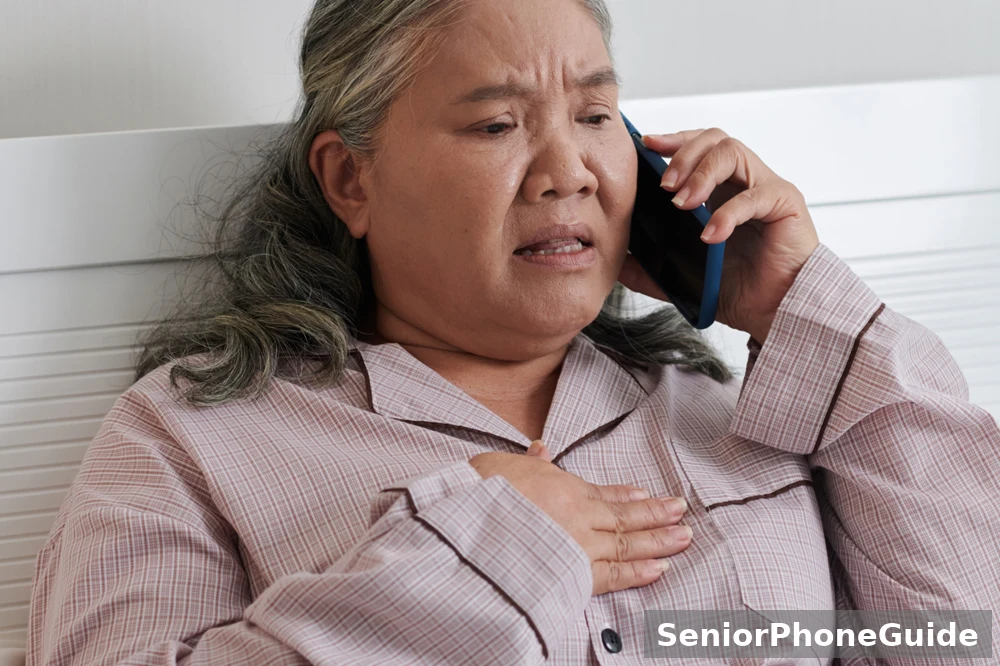
Here are the never rules, in plain words. They cover texts, emails, QR codes, apps and calls together.
- Never tap a link in a message claiming to be from myGov.
- Never reply with personal information or sign-in details.
- Never share your username, password, security code, bank details, licence, passport, Medicare card or tax file number in reply to any message.
- Never install an app from a link in a message. The official myGov app comes only from your phone's app store.
- Never scan a QR code from a message to sign in.
- Never pay money because a message told you to.
Sometimes the scam arrives as a call instead. A voice claims to be from Services Australia or another government office. It says your account is in trouble, or your payments will stop, and it wants you to act now — to share details, or to move money, or to stay on the line while it "fixes" things. Here is exactly what to say: "I do not deal with this over the phone. I will check myself." Then hang up. You do not need to be polite to a scammer, and you do not need to explain yourself.
After you hang up, do the same check as for a text: type my.gov.au yourself, or open the official app, and look in your Inbox. If the call was real, the notice will be there. If it is not there, the call was a lie. If the caller named an organisation, you can also call that organisation back on a number you found yourself — never the number the caller gave you.
Your first win is simple, and it counts: you stopped, you did not tap, and you checked the real place yourself. That one pause breaks the whole trick. Everything after it is tidying up, and this guide walks you through that too.
What happened to me? Find your case
Different cases need different next steps. Find the row that matches what happened to you, and follow only that row. Skip any step that does not fit your case.
| What happened | What to do next |
|---|---|
| I only got the text. I tapped nothing and shared nothing. | You are safe. Delete the text and report it (see the reporting section). No password change needed. |
| I tapped the link, but I entered nothing. | Close the page. Do not enter anything. Then check the real Inbox by typing my.gov.au yourself, to be sure nothing changed. |
| I entered my password on the fake page. | Change your password on the real site at once, then turn on the safer sign-in. Check your account history and linked services. Then follow the first-hour steps below. |
| I gave licence, passport or Medicare card numbers. | Do the password steps above, then contact IDCARE on 1800 595 160 for a free recovery plan. Then follow the first-hour steps below. |
| I shared bank or card details, or money moved. | Call your bank or card provider immediately and ask them to stop transactions. Then do the password steps and follow the first-hour steps below. |
| I am locked out of myGov. | Do not panic. Check your registered email for a myGov message about unusual sign-in activity and follow its prompts, or recover your account with Digital ID. If you still cannot get in, call the myGov helpdesk on 132 307 and select option 1. The locked-out section below walks through this slowly. |
Skip this guide's deep recovery if: you only received the text and tapped nothing, shared nothing, and paid nothing. In that case, deleting the text and reporting it is the whole job. The rest of this guide is for readers who tapped, shared, or paid — read only the rows that fit you.
The first-hour steps, in order
The official pages list these steps in different orders, so the order below is this guide's own recommendation — the sequence that protects your money and your account fastest, put together from myGov, Scamwatch and the Cyber Aware guide. Skip any step that does not fit what happened to you.
- Stop. Do not tap the link, do not reply to the text, and do not call any number written in the message.
- Check the real Inbox. Type my.gov.au into your browser yourself, or open the official myGov app, and look in your myGov Inbox for the notice the text talked about.
- If you entered your password, change it on the real site straight away. Sign in by typing my.gov.au yourself — never through the message link — and set a new password.
- Turn on the safer sign-in. Set up multifactor authentication — an extra check beyond your password — and use a passkey if your phone offers it. A passkey is a safer sign-in your phone offers you: it checks it is really you, and a fake page cannot steal it the way it steals a password. If you set up that safer sign-in, you can also turn off the password.
- If bank or card details were shared, or money moved, call your bank or card provider immediately. Ask them to stop transactions and watch for new ones.
- Call the Services Australia Scams and Identity Theft Helpdesk. They can help secure your accounts and check for misuse. (Never trust a Helpdesk number from a text message or a search snippet.)
- If identity documents were shared, contact IDCARE on 1800 595 160. IDCARE is Australia and New Zealand's national identity and cyber support service, and it can help make a free plan to limit the damage.
- Report the text to Scamwatch, then check your account. Use the Scamwatch report form, and forward suspicious emails to reportascam@servicesaustralia.gov.au. Then, signed in to the real myGov, check your account history for unfamiliar sign-ins, look at your linked services, and remove any connected devices or safer sign-ins you do not recognise.
Work through these steps at your own pace, but do the bank step immediately if money is involved — speed matters there more than anywhere else. If you or someone else is in immediate danger, call 000.
Locked out, no phone, or needing a hand
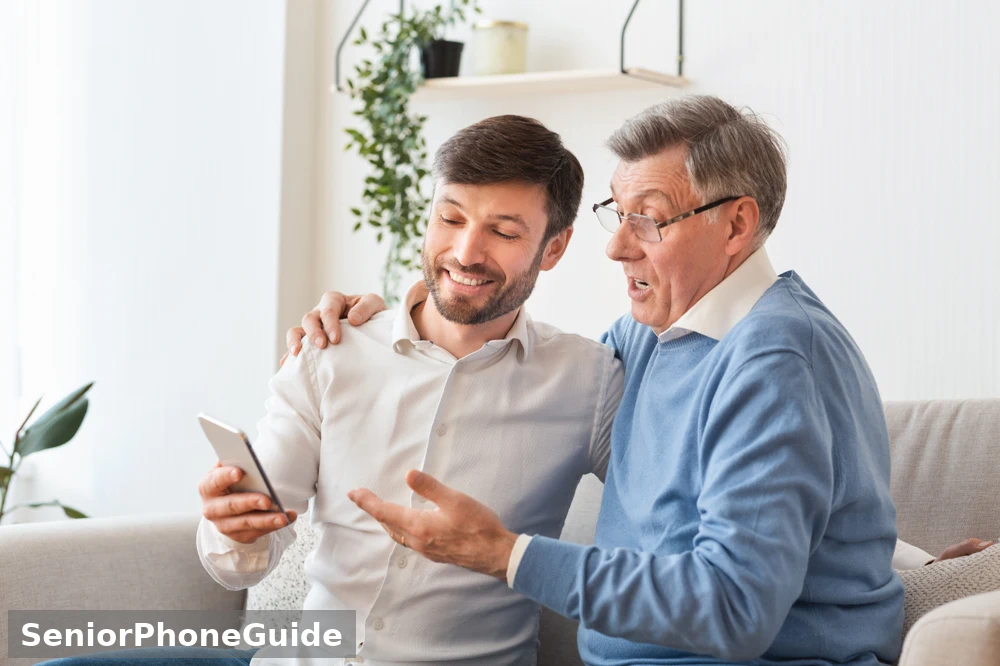
Being locked out feels frightening, but it is fixable, and it does not mean the scammer won. Work through this slowly.
First, check your registered email. Look for a message from myGov about unusual sign-in activity, and follow the prompts inside that email. Only follow prompts from an email you opened yourself in your own inbox — never from a link in a text.
Second, try recovering your account with Digital ID. Digital ID is a way to prove it is you on your phone, without relying on the password alone. The myGov recovery page points you to this path when the password no longer works.
Third, if you still cannot get in, call the myGov helpdesk on 132 307 and select option 1 for myGov. The helpdesk is open Monday to Friday from 7 am to 10 pm, and Saturday to Sunday from 10 am to 5 pm, in local Australian time zones, and closed on national public holidays. One scope note worth knowing: the helpdesk can only help with the myGov account itself. If you are calling from outside Australia, the number is +61 1300 169 468, again selecting option 1.
If you have no phone at all, ask a family member or a trusted friend to sit beside you while you use their phone or a computer to type my.gov.au yourself. They can read the screen with you and help you follow the prompts. Asking for that help is not giving up control — you stay in charge, and they only help you see and tap. If a helper ever asks for your password, stop: no helper, family or not, ever needs your password.
Three worries stop many people from acting, so let us answer them plainly. Embarrassment: these texts fool millions of careful people, because they are built to look genuine — feeling fooled does not make you foolish, and reporting helps stop the next person being caught. "The police won't care": Scamwatch reports are exactly how patterns get spotted and warnings get issued, so your report matters even if no money moved. "My children will scold me": telling a family member early is the fastest way to get help, and most families would far rather hear about a text than about a loss.
What a scammer can do next with myGov — and how to check each one
If a scammer got into your myGov account, they did not just get one login. myGov links to government services, and the scammer's next move is usually to look at those services. Check each one, slowly, signed in to the real account.
- Australian Taxation Office (ATO). Look for unfamiliar activity, changed details, or refund changes. If anything looks wrong, contact the ATO through the contact details on its own website, found by you — never through a link in a message.
- Medicare. Check your claims and your details. A fake Medicare claim problem is the scammer's favourite lure, so check whether any claim or detail actually changed.
- Centrelink. Check your payments and your details. If a payment looks wrong or a detail changed, contact Centrelink through its own website, found by you.
Also check your myGov account history for unfamiliar sign-ins or suspicious activity, complete any tasks in the Security review section when you are signed in, and remove any connected devices or safer sign-ins you do not recognise. If the scammer could have reached a linked service, contact that service directly as well.
Scam calls about your broadband or phone line work differently from myGov texts. If the call that worried you was about your phone line instead, our guide to NBN scam calls walks through that trick in the same slow style.
If money worries or stress follow what happened, the myGov recovery page also points to financial counselling on Moneysmart and to mental-health support. Asking for that help is part of recovering, not a sign of failure.
Extra care at tax time: June and July
Every June and July, as tax time arrives, messages promising a tax refund spike. They say a refund is available and ask you to confirm your myGov details through a link. The shape is the same urgent-link trap, dressed in tax-time clothes.
At tax time, slow down even more. A real refund is handled inside your real myGov account and the tax office's own systems — never through a link in a text. If a refund message arrives, do the usual check: type my.gov.au yourself, or open the official app, and look in your Inbox. If there is no matching notice there, delete the text and report it. Do not let the words "refund" and "limited time" rush you. Refunds do not disappear because you took ten minutes to check properly. The pressure keeps building toward the 31 October lodgment deadline that applies to most Australians, and a message that leans on that date deserves the same slow check, not a faster tap — CommBank reported in July 2026 that impersonation scams may ramp up as that deadline draws closer.
Every place to report, and what each one is for
Reporting helps in two ways: it creates a record that can help you, and it helps stop the next person being caught. Use the rows that fit your case. You do not need to contact every row.
| Where | What it is for | Details |
|---|---|---|
| Scamwatch report form | Reporting the scam so patterns get spotted and warnings get issued | https://www.scamwatch.gov.au/report-a-scam — once your details are secured, report there to help stop the scam or warn others. If you or someone else is in immediate danger, call 000. |
| Scam email address | Forwarding suspicious myGov, Centrelink or Medicare emails | reportascam@servicesaustralia.gov.au |
| Services Australia Scams and Identity Theft Helpdesk | Securing your accounts and checking for misuse after a scam | Services Australia Scams and Identity Theft Helpdesk: 1800 941 126. Never trust a Helpdesk number from a text message or a search snippet — use the number Services Australia publishes. |
| myGov helpdesk | Help with the myGov account itself, including getting back in | 132 307, select option 1 for myGov. Monday to Friday 7 am to 10 pm; Saturday to Sunday 10 am to 5 pm, local Australian time zones; closed on national public holidays. From outside Australia: +61 1300 169 468, option 1. |
| IDCARE | Free recovery plan when identity documents were shared | 1800 595 160 (Individual Helpline). Business hours Monday to Friday 7 am to 7 pm AEST for individuals. State numbers: QLD 07 3555 5900; ACT and NSW 02 8999 3356; VIC and TAS 03 7018 2366; NT, SA and WA 08 7078 7741; International +61 73555 5900. There is also a "Submit a web request" Get Help form on the IDCARE website. |
| Your bank or card provider | Stopping transactions fast when bank or card details were shared or money moved | Call immediately and ask them to stop transactions. Also change passwords on all devices and online accounts — banking, email, government and shopping. |
| Your phone company | Reporting the scam text itself | Numbers suggested in the Cyber Aware third-party guide (not an official page): Telstra 0476 888 888, Optus 7226, Vodafone 7226. |
| ReportCyber | Reporting the fake website itself, if the link is still live | Use the ReportCyber form at cyber.gov.au if you believe the fake myGov site is still active. |
Your post-use habit, once the immediate work is done: check your real myGov Inbox once a week, at a calm moment, by typing the address yourself or opening the official app. That weekly glance catches anything unfamiliar early. And keep the one rule for every new message, whatever it claims: pause, do not tap, and check the real place yourself.
Stronger sign-in: the safer lock for your account
After a scare, the best protection is a stronger lock on the account. myGov's recovery page lists setting up multifactor authentication — an extra check beyond your password — and, if you set that up, turning off the password as well.
A passkey is a safer sign-in your phone offers you: it checks it is really you, and a fake page cannot steal it the way it steals a password. If your phone offers that safer sign-in for myGov, turning it on means a stolen password alone is no longer enough for a scammer. Digital ID is another path myGov points to: a way to prove it is you on your phone, which also helps you recover your account if the password stops working.
You do not need to set this up in a rush, and you do not need to do it alone. Sit with a family member, open the real myGov account by typing the address yourself, and follow the Security review tasks there at your own pace. Remove any connected devices or safer sign-ins you do not recognise while you are there. A stronger lock, set up calmly, is worth more than any hurried fix.
After recovery: stopping the next attempt
Scammers try again. Once your details have been seen, expect more texts, and expect them to change their lure — a different service name, a different urgency, the same link trap. The defence does not change: every new message gets the same pause, the same refusal to tap, and the same check in the real Inbox.
Three habits make the next attempt harmless. First, keep the weekly Inbox check from the reporting section — a calm, regular glance beats a panicked reaction. Second, keep the safer sign-in turned on, so a stolen password alone cannot open your account. Third, tell someone you trust about the attempt, even briefly. A second pair of eyes on a suspicious message catches what tired eyes miss, and talking about it takes away the secrecy scammers rely on.
For more plain-language phone safety guides as they are published, follow SeniorPhoneGuide on Pinterest at follow SeniorPhoneGuide on Pinterest.
Bottom line: A myGov text with a link is never the way in. Type the address yourself, or use the official app, and let the real Inbox decide. That one habit, kept every time, stops the urgent link, the fake verification, the fake app and the tax-time refund alike — because none of them can survive a check you do yourself.
Frequently asked questions
- Does myGov ever send text messages with links?
- No. myGov never sends you a link to sign in, by text or by email. The only safe path is typing my.gov.au yourself or using the official myGov app. Any text with a sign-in link claiming to be from myGov is a scam, whatever it looks like.
- How do I know if a myGov text is real?
- Do not judge it by the sender name or the wording — both can be faked. Instead, type my.gov.au yourself or open the official myGov app, and look in your myGov Inbox. Genuine notices appear in the Inbox. If there is nothing there about the claim, the text was fake. Also check the sender label: a message marked "Unverified" deserves extra caution.
- I tapped the link and entered my password. What do I do first?
- First, do not panic, and do not enter anything else. Go to the real site by typing my.gov.au yourself and change your password straight away. Then turn on the safer sign-in described in this guide. Then check your account history and your linked services — the tax office, Medicare and Centrelink — for anything unfamiliar. Then call the Services Australia Scams and Identity Theft Helpdesk, and report the text to Scamwatch. If bank or card details were also shared, call your bank immediately first, before anything else.
- I gave away my licence or Medicare card number. What now?
- Change your myGov password on the real site, turn on the safer sign-in, and then contact IDCARE on 1800 595 160 for a free recovery plan. IDCARE helps people whose identity documents were shared, and it can walk you through limiting the damage step by step. Then report the text to Scamwatch and check your linked services.
- I replied to the text, but I did not click anything. Am I safe?
- Mostly, yes — but stay careful. Replying tells the scammer your number is live, so expect more texts. You shared nothing, so there is nothing to steal yet. Delete the text, do not tap anything in later messages, and report it to Scamwatch. If you later realise you did share something, follow the row in this guide that matches what you shared.
- My father gave his licence number to a fake myGov text. What do we do now?
- Sit with him and work slowly. First, change his myGov password on the real site, typed by you — never through the message link — and turn on the safer sign-in. Then call IDCARE on 1800 595 160 together for a free recovery plan; IDCARE deals with shared identity documents every day. Then report the text to Scamwatch, and check his linked services together. Reassure him: these texts fool careful people, and acting now is what matters, not how he got caught.
- Someone called claiming to be from Services Australia. How do I check?
- Hang up, then check yourself. Say "I do not deal with this over the phone. I will check myself," and end the call. Then type my.gov.au yourself or open the official app and look in the Inbox. If the call was real, the notice will be there. You can also call the organisation back on a number you found yourself, on its own website — never the number the caller gave you.
- What does "Unverified" above a text mean?
- Since 1 July 2026, business and organisation texts in Australia should carry a branded sender name, like "MyGov" at the top of the screen. Messages from unregistered sender IDs show as "Unverified" instead, grouped in a single thread. "Unverified" does not prove a scam by itself, but it means the sender is not registered — so treat that message with extra caution, and never tap its link.
- What can a scammer do with my myGov details?
- With your sign-in details, a scammer can step into your myGov account and look at the services linked to it — the tax office, Medicare and Centrelink — checking claims, payments and details, and potentially changing them. With identity document numbers, they can try to pretend to be you elsewhere. With bank details, they can try to take money. That is why the first-hour steps cover the password, the bank, the Helpdesk, IDCARE and the linked services together.
- How do I report a myGov scam text?
- Once your details are secured, report it to Scamwatch using the report form at scamwatch.gov.au. Forward suspicious myGov, Centrelink or Medicare emails to reportascam@servicesaustralia.gov.au. If bank or card details were shared, call your bank first, before reporting. If you or someone else is in immediate danger, call 000.
- I am locked out of myGov. How do I get back in?
- Check your registered email for a myGov message about unusual sign-in activity and follow its prompts, or recover your account with Digital ID. If you still cannot get in, call the myGov helpdesk on 132 307 and select option 1 for myGov. Remember the helpdesk can only help with the myGov account itself. If you are calling from outside Australia, use +61 1300 169 468, again selecting option 1.
- Should I delete the text straight away?
- Delete it once you have reported it, or once you are sure you tapped nothing and shared nothing. There is no need to keep a scam text, and keeping it only risks someone tapping it later by mistake. If you already reported it to Scamwatch, deleting it is the tidy last step.
- What is a passkey, in plain words?
- A passkey is a safer sign-in your phone offers you: it checks it is really you, and a fake page cannot steal it the way it steals a password. If your phone offers that safer sign-in for myGov, turning it on means a stolen password alone is no longer enough for a scammer to get in.
- Can I still use myGov after a scam?
- Yes. Once you have changed your password on the real site, turned on the safer sign-in, checked your history and linked services, and removed anything you do not recognise, your account is yours again. Keep the weekly Inbox check habit, and keep refusing every link in every message. A scam does not permanently break your myGov account.
- How do I stop this happening again?
- Keep three habits. Never navigate to myGov through a link in a message — type the address yourself or use the official app, every time. Keep the safer sign-in turned on. And check your real Inbox once a week at a calm moment. Tell someone you trust about new attempts, too — a second pair of eyes catches what tired eyes miss.
Related: NBN scam calls, Canada Post scam texts, An Post scam texts.