
Smartphones With Large Screens for Seniors: The Honest Guide to Size, Weight, and Setup
A bigger screen is easier to read — until it is too big to hold, too heavy for shaky hands, or too complicated to set up. This guide gives you the size rule, the weight tests, and the step-by-step setup that the top guides skip. A bigger screen helps only if the text on it is big enough too — our make text bigger on Android guide shows the one slider that makes messages, emails, and menus comfortably large. A bigger screen helps only if the text on it is big enough too — our increase text size on iPhone guide shows the two sliders that make an iPhone comfortable in twenty seconds.
As an Amazon Associate, I earn from qualifying purchases.
In a hurry? See the current price on Amazon.
Affiliate disclosure: As an Amazon Associate I earn from qualifying purchases. The links below are searches for a phone type (smartphone with large screen for seniors, Samsung Easy Mode phone, senior phone with SOS button) or a fitting accessory, so you can compare current listings yourself. We print no prices, because prices change too often — and differ too much between sellers and models — to print honestly. Check the current price and the current listing details on Amazon before you buy. It costs you nothing extra, and it keeps this site free. Read our affiliate disclosure.
Verdict: buy a large-screen smartphone when the person wants calls, photos, and video calls with family and can hold the phone comfortably — but only after the store test: one-handed reach, two-minute hold, and large text switched on. If the phone is too big to hold, too heavy for shaky hands, or too complicated without a helper, a flip phone or a caregiver-managed phone is the kinder buy.
What a Large-Screen Smartphone Actually Is
A large-screen smartphone is an ordinary smartphone whose screen measures about 6.3 inches or more from one corner to the opposite corner. That diagonal number is the only size figure that matters when comparing models, and it is the figure every guide lists: the iPhone 17 and the Pixel 10a sit at 6.3 inches, the Galaxy A57 and A17 at 6.7 inches, the Jitterbug Smart5 at 6.75 inches, the Pixel 9 Pro XL at 6.8 inches, and the Galaxy S26 Ultra at 6.9 inches. Below 6.3 inches, screens are standard size, not large; above 6.9 inches, you are approaching small-tablet territory, and the phone stops fitting comfortably in most hands and pockets. The guides at the top of the search all list these sizes, but none of them turns the sizes into a rule — which is why buyers end up choosing the biggest screen on the shelf and discovering, too late, that biggest is not easiest.
What a large screen actually buys you is three things. First, bigger text: the same words rendered larger, so a person with low vision reads messages, names, and menus without glasses or squinting. Second, bigger touch targets: buttons, icons, and keyboard keys that a person with stiff or shaky fingers can hit without constantly tapping the wrong thing. Third, a better video call: grandchildren's faces large enough to see expressions on, which is, for many seniors, the entire reason to own a smartphone at all. What a large screen does not buy you is simplicity: a big phone with a cluttered home screen, tiny default text, and twenty unused apps is just as confusing as a small one. Size helps the eyes and the fingers; only setup helps the mind, and setup is covered step by step later in this guide.
The models shoppers meet most often show the range. The search overview names a premium large phone with a very bright screen, a flagship with a simplified Easy Mode that turns the home screen into large tiles, an affordable large phone built for outdoor readability, a senior-specific phone with a dedicated emergency button, and a caregiver-managed phone with a menu-free photo-contact interface. The rival guides add the mainstream picks: the iPhone 17, the Pixel 10a, the Galaxy A series, and the Jitterbug Smart5. This guide does not rank those models against each other — rankings go stale within months, and the right pick depends on the person's hands, eyes, and memory, not on a reviewer's score. Instead it gives you the rules to judge any of them, in a store, with the person's own hands.
The Size Rule in Inches
Here is the rule the top guides never state. For most seniors, the sweet spot is 6.3 to 6.8 inches. At 6.3 inches, text is comfortably large and the phone still fits a normal hand and pocket. Through 6.7 and 6.8 inches, readability keeps improving while handling stays manageable for most adults. Above 6.8 inches, the trade-off turns: the screen is easier to read but the phone is wider, heavier, and harder to reach across with one thumb — and for small hands or a weak grip, that reach decides whether the phone gets used.
Do the store test before you pay, and do it with the person's own hands, not yours. First, the reach test: hold the phone in one hand, as if answering a call, and try to reach the far top corner with the same thumb. If the thumb cannot reach it without shifting the grip, one-handed use will be a struggle — and most senior use is one-handed, while the other hand holds a rail, a bag, or a cup. Second, the two-minute hold: hold the phone to the ear, in the calling position, for a full two minutes. If the hand, wrist, or shoulder tires, the phone is too heavy for daily calls, whatever its screen offers. Third, the pocket test: put the phone, in its case, into the pocket or bag the person actually uses. If it bulges, bends, or will not fit, it will be left at home — and a phone left at home helps nobody.
One more size truth: screen size is not the same as text size. A 6.9-inch phone with small default text is harder to read than a 6.3-inch phone with large text switched on. Every phone in this guide can show large text, bold text, and magnified display — but those settings arrive switched off, and the guides we checked give no steps for switching them on. Sections 4 and 5 below give those steps, for iPhone and Android separately, because a large screen without large text is a promise the phone has not kept yet.
Weight and Handling
Check the water resistance as well — a phone that lives in a hand meets rain and spills, and a splash should not end it.
Weight is the most under-reported number in senior phone guides. The comparison charts list screen size and dimensions, but weight — the thing the hand actually feels — is mostly absent. Only one figure surfaced in the guides we checked: the iPhone 17 at 6.24 ounces, weighed in the Wirecutter text. Every other model's weight must be checked in that model's own listing specifications before buying, because this guide will not invent figures the sources did not give.
What you can judge without a single figure is handling, and handling is mostly about three things. Grip: a smooth glass back slips; a textured back or a grippy case holds. A case is not optional for most seniors — it adds grip and survives drops — but it also adds weight and width, so do the store tests with the case on, not off. Width: a narrower phone, even with the same screen size, reaches easier across the screen; two phones both listed at 6.7 inches can feel different in the hand because their widths differ. Buttons: a phone with a physical emergency button (like the senior-specific models) gives one-press help without finding an app, which matters when the person is frightened or confused. Test all three in the store: grip it, reach across it, find the emergency route without looking.
Where to look: compare smartphones with large screens for seniors and large screen smartphones for elderly, easy to use, and check the current listing details for weight and width on the exact model before you buy.
Text and Display Setup: iPhone
On an iPhone, large text is three settings deep, and all three are worth switching on during setup, not weeks later. First, larger text: open Settings, then Display & Brightness, then Text Size, and drag the slider to the right until the sample text is comfortably readable — not just readable, comfortably readable, because tired eyes at the end of the day read worse than fresh eyes in a shop. Second, bold text: in the same Display & Brightness screen, switch on Bold Text, which thickens every letter on menus, messages, and keyboards, and makes the difference between guessing a word and reading it. Third, display zoom: in Settings, then Display & Brightness, then Display Zoom, choose Larger Text, which enlarges everything on screen — icons, keyboards, menus — not just message text. Restart the phone after changing these, and then test with a real message from a family member: if the person can read it without glasses and without leaning in, the settings are right; if not, go one step larger.
Two more iPhone settings complete the picture. Button shapes, under Settings, then Accessibility, then Display & Text Size, underlines the places that can be tapped, so the person stops wondering what is a button and what is just a label. And Reduce Motion, in the same Accessibility screen, calms the zooming and sliding animations that can confuse or dizzy a new user. Write the three main steps on the card kept with the phone (see the setup checklist later), because after any major software update, display settings occasionally reset, and the household should know how to put them back without a support call.
Text and Display Setup: Android
On Android, the same three ideas live in slightly different places, and they vary a little by maker — Samsung, Google Pixel, and others use different menu names — but the path below works on most modern Android phones, and the household should confirm the exact wording on the phone in hand during setup. First, font size: open Settings, then Display, then Font Size, and drag the slider to Large or Largest. Second, display size: in the same Display screen, open Display Size and move it up one or two steps, which enlarges icons, menus, and keyboards together — this is the Android equivalent of the iPhone's Display Zoom, and it is the setting most often missed, because buyers enlarge the font and wonder why the icons stayed small. Third, bold text: in Settings, then Accessibility, then Display, switch on Bold Text if the phone offers it, which thickens letters across the system.
Samsung phones add one more setting that matters enormously for seniors: Easy Mode. Open Settings, then Display, then Easy Mode, and switch it on. Easy Mode replaces the standard home screen with large, tile-based shortcuts for the most-used functions — phone, messages, camera, contacts — with bigger text and fewer choices on screen. The search overview describes it exactly that way, as large tiles, and it is the closest a mainstream Android phone comes to a simplified senior phone without buying a specialist device. Test it with the person, not for them: hand them the phone in Easy Mode and ask them to make a call to a family member. If they succeed without help, Easy Mode stays on; if they miss the standard layout, switch it back — the setting can be toggled at any time, and the right choice is the one the person actually uses.
Two more Android settings complete the picture. High contrast text, under Settings, then Accessibility, then Display, sharpens text edges against backgrounds, which helps in bright rooms and outdoors. And magnification, in the same Accessibility area, lets the person triple-tap to zoom any part of the screen — a lifeline for reading small print in messages, labels, and web pages without changing the whole display.
Where to look: compare Samsung Easy Mode phones for seniors and Google Pixel large screen phones for seniors, and check the current listing details for Easy Mode support on the exact model before you buy.
Choosing by Low Vision
Turn on the screen reader and magnifier at set-up — TalkBack and VoiceOver are built in, and they change the phone for low vision more than any case does.
For low vision, the screen size is only the start; brightness and contrast decide whether the screen is readable in the real world. A phone that reads beautifully in a dim shop can wash out completely in sunlight, on a bus, or in a bright kitchen. When comparing models, look for high peak brightness — the premium models advertise very high brightness for exactly this reason — and test it the honest way: take the phone to a window or outside, open a message, and try to read it in daylight with the brightness on automatic. Automatic brightness should stay on, so the phone adapts without the person remembering to adjust it.
Contrast matters as much as brightness. Dark text on a light background reads best for most people with low vision; some prefer the reverse (light text on dark), and both Android and iPhone offer a dark mode plus high-contrast options to try. Let the person choose, in daylight, with a real message — not a settings screen, which is always easier to read than real content. And magnification is the safety net: a triple-tap zoom (Android) or the iPhone's Zoom feature (Settings, then Accessibility, then Zoom) lets the person enlarge any small print on demand.
One more low-vision truth: the keyboard is where small text hurts most. A large screen helps, but a keyboard with small keys still produces wrong letters and frustration. Test the keyboard with a real message: can the person type a short reply — "Yes, see you Sunday" — without constant corrections? If not, enlarge the keyboard (display size up, as above), try voice typing (the microphone key on the keyboard, which lets the person speak the message instead of typing it), and consider a keyboard app with larger keys if the built-in one stays too small. The phone that lets the person reply to family is the phone that keeps them connected; the phone that makes replying a chore is the phone that goes silent.
Choosing by Hearing and Dexterity
Check for fall detection too — on the big phones it calls for help when the wearer can't, and it costs nothing extra to have on.
For hearing loss, check two things before buying, because neither is visible on the box. First, hearing-aid compatibility: the rival guides' comparison tables include a hearing-aid compatibility column for a reason — a phone rated compatible with hearing aids is designed to work with the aid rather than fight it, producing less buzz and interference. Ask for the rating on the exact model, and test it with a real call wearing the person's own hearing aids, inside the return window, with the television on. Second, volume and speakerphone: the loudest setting should be clear, not distorted — test it with a real call, and test the speakerphone too, because many seniors conduct most calls on speaker, hands-free, and a weak or tinny speakerphone ruins that routine.
For dexterity — stiff, shaky, or arthritic hands — the large screen helps only if the touch targets are large and the phone is grippable. Test three things in the store. The tap test: can the person tap the phone icon, then a contact, without hitting the wrong target twice in a row? The swipe test: can they swipe between home screens without the phone slipping? The hold test from the size section: two minutes to the ear without tiring. If tapping fails, enlarge the display size (which enlarges targets too) and try voice control — "call Mary" spoken to the phone's assistant replaces a whole chain of taps. If holding fails, the phone is too big or too heavy, whatever its screen offers, and a smaller model or a flip phone deserves a second look. Dexterity is not a footnote for senior phones; for many buyers, it is the deciding factor, and the guides that list screen size without a handling test have missed it.
Where to look: compare hearing-aid compatible smartphones for seniors and iPhones for seniors, large screen, and check the current listing details for hearing-aid compatibility on the exact model before you buy.
One more check that the comparison tables hide in plain sight: the hearing-aid compatibility rating. Phones carry an M rating for acoustic coupling and a T rating for telecoil coupling, and the newer HAC 2019 standard replaces the older M/T scale on recent models — a higher rating means the phone was tested to work with hearing aids with less buzz and interference, not merely that it can connect to them. This guide will not assign a rating to any model, because ratings change by variant and region: read the exact model's listing, look for its M/T or HAC 2019 rating, and confirm it against the person's own hearing aids before buying. A Bluetooth connection alone is not the same promise, because Bluetooth hearing aids and telecoil hearing aids ask the phone different questions — only the rating, plus a real test call, answers them.
Choosing by Memory
Memory loss changes the smartphone question more than any other need, because a smartphone's strength — it can do everything — is exactly its weakness for a person who forgets how. A standard smartphone presents dozens of icons, menus within menus, passwords, updates, and notifications, and every one of them is a chance to get lost. For mild memory difficulty, a mainstream phone in a simplified mode can work: Samsung's Easy Mode with large tiles, or an iPhone with a simplified home screen showing only phone, messages, photos, and video calls, with everything else moved off the first screen. The rule is ruthless: if an app is not used weekly, it does not belong on the home screen.
For moderate memory loss, the honest answer is usually not a mainstream smartphone at all, but a caregiver-managed phone: a device like the RAZ Memory phone, where the interface is a menu-free screen of contact photographs — tap and hold a face to call that person — and a family member manages contacts, settings, and limits remotely from an app. No menus to get lost in, no passwords to forget, no app store to wander into. The trade is real: the person gives up browsing, independent texting, and app choice. But for a person who mainly needs to call family and be reachable, that trade buys something a mainstream phone cannot: a phone that still works on a bad day, without a helper standing by. If the household chooses a mainstream phone for someone with memory loss, the helper must accept the ongoing job: keeping the home screen simple, rescuing the person from wrong menus, and re-teaching after every update. If nobody can accept that job, choose the managed phone.
Where to look: compare simple phones for seniors with dementia and Jitterbug smartphones for seniors, and check the current listing details for caregiver-management features on the exact model before you buy.
Battery Reality
Battery claims are the second most overstated numbers in phone advertising, after screen superlatives. Headline hours — "up to 48 hours," "up to 52 hours" — are measured in laboratory conditions: light use, dim screen, strong signal, no video calls. Real senior use looks different: a video call with grandchildren eats battery far faster than standby, a weak signal (a rural home, a thick-walled building) makes the phone work harder and drain faster, and an old battery holds less than a new one. So translate it yourself: ask what the person's heaviest day looks like — two video calls, a dozen messages, some photos — and assume the headline figure covers far less than that.
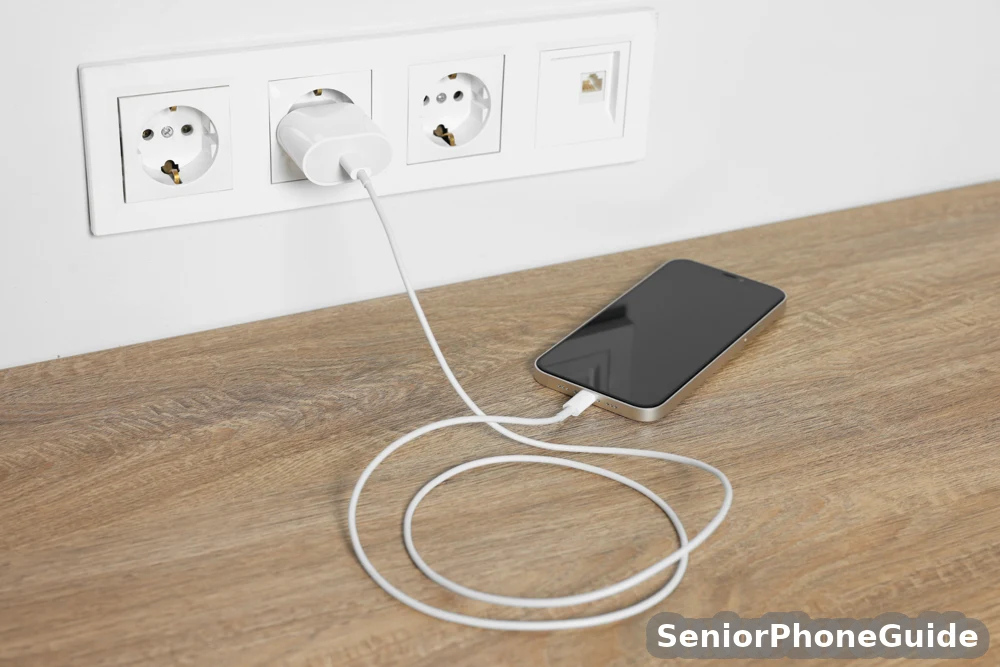
Charging ease matters as much as battery size, and it is where senior-specific design shows. A phone that charges wirelessly — set it on a pad, no cable to fumble — or that sits in a charging dock, removes the daily struggle with a small cable and a small socket, which is a real struggle for stiff or shaky hands and poor eyesight. If the phone charges only by cable, buy a cable with a large, easy-grip connector and a long lead, and fix one charging spot where the phone sleeps every night — the same fixed-spot rule that makes cordless home phones work. And plan for aging: after two years of daily charging, any phone's battery holds noticeably less. Check before buying whether the battery can be replaced, and at what cost, because a phone whose battery cannot be replaced has a built-in expiry date, however good its screen.
Who Should Not Buy a Large Smartphone
Most guides tell you who should buy. This section tells you who should not, because a wrong smartphone purchase teaches the person that phones are confusing, and that lesson is hard to undo. Do not buy a large smartphone if the person's hands cannot hold it: small hands, weak grip, severe tremor, or arthritis that tires within minutes. The store tests from the size section decide this, not the screen specification — if the reach test, the two-minute hold, or the pocket test fails, the phone is wrong, however readable its screen.
Do not buy a large mainstream smartphone if the person has memory loss and no helper can tend the phone weekly. A mainstream phone needs ongoing tending: updates change menus, notifications pile up, passwords expire, and the home screen drifts. Without a helper to prune and rescue, the phone becomes a source of confusion within months. In that case, a caregiver-managed phone with a photo-contact screen, or a simple flip phone for calls only, is not a lesser choice — it is the choice that keeps the person connected. And do not buy a large smartphone if the person only wants calls: a person who never video-calls, never photographs, and never messages does not need a computer in their pocket. They need a phone, and the kindest phone for calls only is a flip phone or a corded home phone — our guides to the best big-button cell phones for seniors, the cordless big button phones, and the SMPL big button phone cover those choices, and our guide to choosing a phone for a senior walks the whole decision question by question.
| What matters | Large smartphone | Flip phone | Caregiver-managed phone |
|---|---|---|---|
| Reading | Large text, big screen | Small screen, big buttons | Photo contacts, no menus |
| Holding | Needs grip + reach test | Light, one-handed, pocketable | Usually standard size |
| Menus and memory | Needs tending + learning | Simple menus, few choices | None — tap a face to call |
| Video calls + photos | Yes, the reason to buy one | Usually no | Sometimes, helper-set |
| Emergency help | SOS in settings + apps | Often a physical SOS button | Helper-managed alerts |
| Best for | Wants video calls, can hold it | Calls only, simple life | Memory loss, needs oversight |
The golden rule: match the device to the daily life, not to the screen size. The phone that gets picked up every day is the right phone; the phone with the biggest screen that stays in a drawer is the wrong one.
Setting It Up, Step by Step
Setup is where a senior smartphone either becomes part of daily life or becomes a drawer item, so do it in this order, on one visit, with the person present — not rushed, not left as a box for later. The rival guides we checked give no setup walkthrough at all, despite calling ease of setup a criterion, so this checklist fills that gap.
Step 1: move the number and contacts
Bring the old phone, the new phone, and the carrier's help if needed. Transfer the number, copy the contacts, and confirm the most-called numbers arrived — daughter, son, doctor, neighbour — before going any further. A new phone without its contacts is a stranger, not a tool.
Step 2: set large text, display size, and bold text
Follow the iPhone steps or the Android steps from this guide, on the person's own phone, and test with a real message from a family member. If the person can read it without glasses and without leaning in, the settings are right.
Step 3: simplify the home screen
Keep only the apps used weekly — phone, messages, photos, video calls — on the first screen, large and in the order the person expects. Move everything else off the first screen, or switch on Samsung Easy Mode if the phone is a Samsung. A four-icon home screen is usable; a forty-icon home screen is a maze.
Step 4: add emergency contacts and set up SOS
Add the emergency contacts, set up the phone's SOS feature (the button combination or the dedicated button, depending on the model), and test it in the way the maker allows without actually calling emergency services — usually a countdown screen that can be cancelled. Teach the household what SOS does before it is ever needed.
Step 5: set up spam-call blocking and teach the family rule
Switch on the phone's spam and unknown-call filtering, add the known family numbers to contacts so they always ring through, and say the rule until it sticks: unknown number, let it go to voicemail, listen to the message, and never act on urgency from a stranger without checking through a number the family already knows.
Step 6: pair hearing aids, if any, and test a real call
Pair the person's own hearing aids, make a real call to a family member with the television on, and check for buzz, clarity, and volume. If it buzzes, try a different volume and tone setting, and ask the hearing-aid provider whether that phone pairs cleanly with that aid model.
Step 7: teach two tasks, then stop for the day
Teach making a call first, then a video call. Two successful tasks today beat ten half-learned ones. Add the rest — photos, messages, voicemail — over the following visits, one or two at a time.
Step 8: write the settings card and note the return window
Write the display settings, the SOS method, and the spam rule on a card kept with the phone, and note the last return date. Run the decisive tests before that date: the store tests (reach, hold, pocket), the hearing-aid call, and the daylight reading test.
Where to look: compare large screen phones with SOS buttons for seniors and wireless charging docks for smartphones, and check the current listing details for SOS and wireless charging on the exact model before you buy.
Total Cost Without Surprises
Ask how long the warranty lasts and what it covers before you pay — a phone this big is dropped, and the warranty is where cheap ones show it.
A smartphone's cost is three costs, not one, and the guides that list a device price without the other two mislead the buyer. The first cost is the device itself, bought outright or paid monthly — and a monthly figure that looks small multiplies over two or three years into a large total, so always multiply it out before comparing. The second cost is the monthly plan: calls, texts, and data, where senior-specific plans from carriers like Lively, Consumer Cellular, AT&T, T-Mobile, and Verizon (all named in the rival guides' carrier sections) may cost less than a standard plan for a light user — compare them as categories, on the person's actual usage, not on advertised headlines. The third cost is any safety-service subscription: emergency response services, caregiver-management apps, or medical-alert features that charge monthly on top of the plan. Add all three together, over the same period, before deciding. We print no prices in this guide, deliberately: device prices, plan prices, and subscription prices all change often enough that any printed figure would be stale within weeks. Use the search links to compare current figures for the exact model and plan you want, and check the current price and listing details before you buy.
Common Problems and Fixes
The text is still too small
Go one step larger on both font size and display size — most buyers enlarge one and miss the other — and switch on bold text.
The screen washes out outdoors
Check that automatic brightness is on, and try high-contrast text. If the screen still vanishes in sunlight, that model may simply lack the brightness the person needs — test it in daylight before the return window closes, not after.
The phone feels too heavy or slips
Add a grippy case, and re-do the two-minute hold test with the case on. If it still tires the hand, the phone is too big or too heavy for daily calls — exchange it for a smaller model or a flip phone before the window closes, rather than tolerating a phone that gets avoided.
The battery dies by evening
Check what used it: video calls and weak signal drain fastest. Add a midday top-up on a wireless pad or dock, reduce screen brightness one notch, and close apps left running video. If the battery is two years old and fades fast, ask about a replacement before assuming the phone is finished.
Spam and scam calls keep coming
Re-check the spam filtering and make sure family numbers are in contacts so they ring through. Re-teach the family rule: unknown number, voicemail first, never act on urgency from a stranger, never share a code from a message or call. No filter catches a brand-new scam number, so behaviour remains the real defence.
The person forgot the passcode
This is why the setup card matters: the household's recovery method (a trusted family member's account recovery, or the carrier's reset route) should be written down before it is needed, not discovered during a lockout. Set up fingerprint or face unlock during setup if the person can use it reliably — it removes the passcode problem for daily use entirely.
Quick answers
Size: 6.3 to 6.8 inches suits most seniors; above 6.8, do the reach, hold, and pocket tests before paying. Reading: a big screen without large text, bold text, and display size switched on is still hard to read — set all three during setup. Cost: add device plus monthly plan plus any safety subscription over the same period; never judge by the device figure alone. Memory: if no helper can tend the phone weekly, choose a caregiver-managed phone or a flip phone instead of a mainstream smartphone.
Bottom line: a large-screen smartphone is the right choice when the person wants video calls and photos, can hold the phone comfortably through the store tests, and has large text and a simplified home screen switched on — with a helper for setup and a power-cut and spam plan in place. If holding fails, memory needs tending nobody can give, or calls are all the person wants, a flip phone, a caregiver-managed phone, or a home phone will serve them better, and choosing the simpler device is not settling: it is choosing the phone that will actually be used.
Follow along: SeniorPhoneGuide on Pinterest shares one plain-language senior-phone tip at a time — follow SeniorPhoneGuide on Pinterest.
Frequently asked questions
- What counts as a large screen, in inches?
- A screen of about 6.3 inches or more, measured diagonally from corner to corner. The models in the top guides sit between 6.3 inches (iPhone 17, Pixel 10a) and 6.9 inches (Galaxy S26 Ultra), with the Jitterbug Smart5 at 6.75 inches and the Galaxy A series at 6.7 inches. For most seniors the sweet spot is 6.3 to 6.8 inches: big enough to read, small enough to hold.
- Is a bigger screen always easier for seniors?
- No. A bigger screen is easier to read but harder to hold: above about 6.8 inches, width and weight start working against small hands, weak grip, and tremor, and the phone may not fit the pocket or bag the person uses. Do the store tests before paying: one-handed reach to the far corner, a two-minute hold to the ear, and the pocket test with the case on. A phone that fails any of them is the wrong size, however impressive its screen.
- How do I make the text bigger on an iPhone?
- Open Settings, then Display & Brightness, then Text Size, and drag the slider right until the sample text is comfortably readable. In the same screen, switch on Bold Text, which thickens every letter. Then, in Display & Brightness, open Display Zoom and choose Larger Text, which enlarges icons, keyboards, and menus as well — not just message text. Test with a real message from a family member afterwards.
- How do I make the text bigger on Android, and what is Easy Mode?
- Open Settings, then Display, then Font Size, and move the slider to Large or Largest; in the same Display screen, raise Display Size a step or two so icons and keyboards grow too. On Samsung phones, open Settings, then Display, then Easy Mode: it replaces the home screen with large, tile-based shortcuts for phone, messages, camera, and contacts, with bigger text and fewer choices. Test it with the person — if they can make a call unaided in Easy Mode, it stays on.
- How heavy is too heavy?
- Too heavy is whatever tires the person's hand, wrist, or shoulder in a two-minute hold to the ear — that test decides it better than any figure. Only one weight surfaced in the guides we checked: the iPhone 17 at 6.24 ounces. Every other model's weight must be checked in that model's own listing specifications before buying, because this guide will not invent figures the sources did not give.
- Will it work with hearing aids?
- Check the hearing-aid compatibility rating on the exact model, and do not assume it. Then test with a real call wearing the person's own hearing aids, inside the return window, with the television on: a phone that buzzes with one aid model may be silent with another, and no specification sheet can tell you which. Ask the hearing-aid provider whether that phone pairs cleanly with that exact aid model.
- What about battery life in real use?
- Headline hours are laboratory figures — light use, dim screen, strong signal, no video calls. Real senior use is heavier: video calls with grandchildren drain far faster than standby, and a weak signal makes the phone work harder. Assume the headline figure covers far less than the person's heaviest day, and plan a charging routine: a fixed nightly spot, ideally a wireless pad or dock, so charging needs no cable fumbling. After two years, any battery holds noticeably less — check replaceability before buying.
- Should I buy a phone with an emergency button?
- For a person living alone, or with a medical condition, a dedicated emergency route matters more than almost any other feature. Senior-specific phones often have a physical emergency button; mainstream phones offer SOS through a button combination or settings. Whichever the model, set it up during the first visit and teach the household what it does before it is ever needed — an emergency feature nobody knows about is not an emergency feature.
- What does it really cost per month?
- Three costs added together over the same period: the device (outright or monthly — always multiply a monthly figure over two or three years), the monthly plan (calls, texts, data — senior plans from carriers like Lively, Consumer Cellular, AT&T, T-Mobile, and Verizon may suit a light user better), and any safety-service subscription (emergency response or caregiver-management apps). We print no prices: all three change often enough that any printed figure would be stale within weeks. Compare current figures for your exact model and plan before you buy.
- Can it block scam calls?
- Partly. Modern phones offer spam and unknown-call filtering, and putting family numbers in contacts lets them always ring through. But no filter recognises a brand-new scam number calling for the first time, so it will still ring. The real defence is behaviour, taught during setup: unknown number, let it go to voicemail, listen to the message, and never act on urgency from a stranger or share a code from a message or call without checking through a number the family already knows.
- My mother is 82, with small hands and a weak grip — is a 6.8-inch phone a mistake, and what should we buy instead?
- Probably, yes — for her hands, not for her eyes. A 6.8-inch phone in a case is wide and heavy, and if she cannot reach across it one-handed or hold it for two minutes without tiring, she will avoid using it, however readable its screen. Take her to a store and run the three tests on a 6.3-inch model and on a flip phone: if the smaller smartphone passes, it is the better buy; if holding still fails, a light flip phone with big buttons — or a corded home phone for calls — will serve her better than any large phone she will not pick up.
- My father has dementia and keeps getting lost in menus — should we buy him a big smartphone at all?
- Probably not a mainstream one. A standard smartphone's menus, passwords, updates, and notifications are exactly what memory loss makes hard, and without a helper tending the phone weekly, it becomes a source of confusion within months. The kinder options are a caregiver-managed phone — a menu-free screen of contact photographs, managed remotely by family — or a simple flip phone for calls only. If the family still wants a mainstream phone, it only works with a simplified home screen (four large icons, nothing else) and a named helper who accepts the ongoing tending job.
- Is a smartphone, a flip phone, or a home phone better for my father instead?
- It depends on what he actually does. A large smartphone wins if he wants video calls and photos and can hold it through the store tests. A flip phone wins if he mainly wants calls, in a light pocketable device, with a physical emergency button. A home phone wins if he mainly calls from home and struggles with numbers, hearing, or memory — our guides to the SMPL big button phone and the cordless big button phones cover those designs, and our guide to choosing a phone for a senior walks the whole decision question by question. Match the device to the daily life, not to the screen size.
- How much does a large-screen smartphone cost?
- We print no price, deliberately: device prices, plan prices, and safety-subscription prices all differ between sellers and models and change often enough that any printed figure would be stale within weeks. Use the search links in this guide to compare current figures for the exact model and plan you want, and check the current price and listing details before you buy — the total over two or three years matters more than any single figure.
- What if we buy it and it does not suit them?
- That is what the return window is for. Before paying, ask how many days you have to return or exchange it, keep the box and receipt until that window closes, and run the decisive tests in the first days: the store tests (reach, hold, pocket), a real call with the person's own hearing aids in, and reading a real message in daylight. A phone that fails any of those tests in the person's own hands is a phone to exchange, not to tolerate.