Apps for Older People in 2026: Start With Three, Download Nothing Else First
The best apps for older people are the ones already on the phone — Medical ID, Emergency SOS, Magnifier and Find My — plus three free downloads: Medisafe for medication reminders, GoodRx for prescription prices, and WhatsApp or FaceTime for staying in touch with family.
No affiliate links on this page: this guide explains which apps are worth downloading — it is not a buying guide, so nothing here is for sale.
Short on time? The short answer gives you the whole job in one paragraph.
Last updated: November 15, 2026
About this guide: there are no affiliate links on this page — this is a plain-English explanation, not a buying guide, so this guide earns nothing from the apps it names. Every step was checked against the makers' own support pages in November 2026. Read our affiliate disclosure.

Our verdict: Start with three — and download nothing else first. The phone already has the safety tools built in: Medical ID, Emergency SOS, Magnifier and Find My. Then add three free apps: Medisafe for medication reminders, GoodRx for prescription prices, and WhatsApp or FaceTime for staying in touch with family. Those seven cover the problems that actually hurt. Everything else on the lists is optional, and this guide says so — including which free versions quietly stop working when you need them most.
Every list of apps for seniors looks the same: twenty or thirty names, all of them "essential", all of them free, and not one of them honest about what happens after you download it. A senior who follows one of those lists ends up with a home screen full of apps that ask for money, send notifications all day, and quietly use up the phone's battery and data. Pew Research says 78% of adults 65 and older now own a smartphone, up from 61% in 2020 — so the question is no longer whether a senior has a phone, it is which of the thousands of apps on it are worth the space. This guide answers that question the way every guide on this site is built: by reading the pages that already rank for it, finding what they miss, and writing the missing part. The answer is short. The phone already has the safety tools built in. Three free downloads cover the three problems that actually hurt: missed medication, prescription cost, and staying in touch. Everything else is optional.
The short answer
The best apps for older people are the ones already on the phone: Medical ID, Emergency SOS, Magnifier and Find My are built in, free, and need no download at all. After those, three free downloads cover the three problems that actually hurt. Medisafe reminds you to take your medication and tells a family member if you miss a dose. GoodRx compares prescription prices at 70,000 pharmacies and often cuts the price by up to 80% on generics, with no account and no sign-up. WhatsApp or FaceTime — whichever one the family already uses — keeps you in touch with the grandchildren for free. That is the whole starter set. Download nothing else until these are working, because every extra app is another password, another notification, and another subscription waiting to charge. Nearly 70% of American adults take at least one prescription medication, and more than 22% take five or more, so the medication app is the one that matters first — and one in five adverse drug events comes from incorrect dosage or usage, which is exactly what a reminder app prevents. The rest of this guide is the six honest picks, what each one costs, what its free version actually lets you do, the safety rules for downloading anything, and the family setup order that works.
| Problem | App | Cost | What the free version does |
|---|---|---|---|
| Missed medication | Medisafe | Free; Premium $4.99/mo or $39.99/yr | Reminders for up to 2 medications |
| Prescription cost | GoodRx | Free; Gold $9.99/mo | Price comparison at 70,000+ pharmacies |
| Staying in touch | WhatsApp or FaceTime | Free | Unlimited calls, texts and video |
| Finding family | Life360 | Free; Gold $7.99/mo | Location sharing, place alerts, SOS |
| Reading small print | Magnifier / Be My Eyes | Free | Built-in magnifier; live volunteer help |
| Keeping the mind active | Lumosity | Free limited; Premium $12/mo or $60/yr | A few games free each day |
The free starter pack: what the phone already has
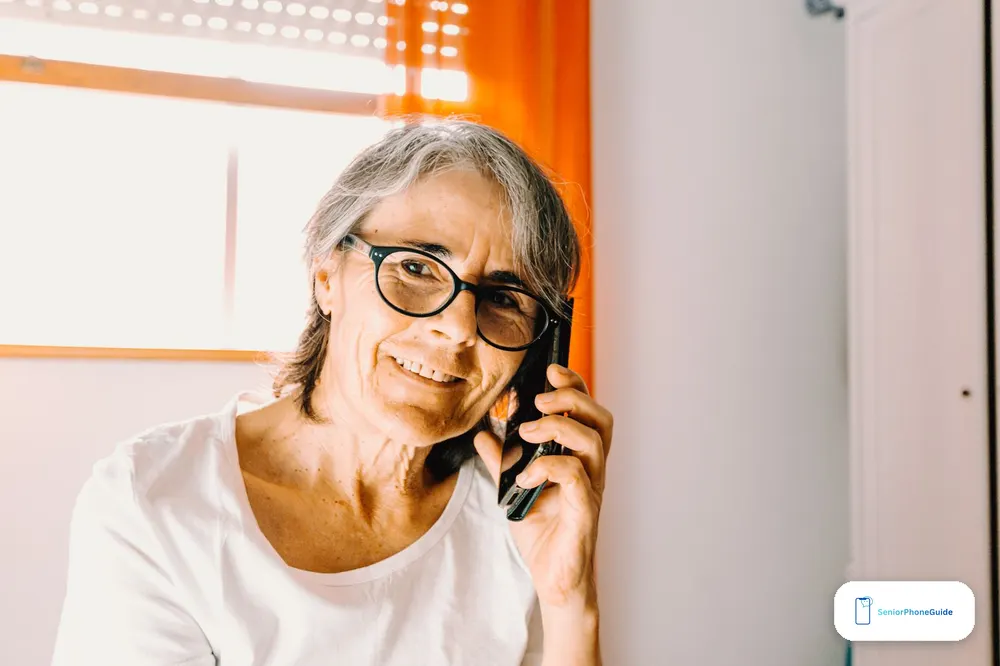
Before downloading anything, check what is already on the phone. Every modern iPhone and Android phone ships with safety tools that no app store download can beat, because they are built into the phone itself: they need no account, no subscription, no password, and no download. This guide starts here, because these five tools are free, they are already installed, and they are the ones that matter in an emergency.
Medical ID (iPhone) and emergency info (Android). On an iPhone, open the Health app, tap the profile picture, then Medical ID. On an Android phone, it is in Settings under Safety and emergency, or in the Contacts app under your own name. Fill in the medications, allergies, blood type and emergency contacts. After that, anyone who finds the phone — a paramedic, a neighbour, a stranger on the street — can read it from the lock screen without unlocking the phone. Do it before anything else. Our emergency SOS setup guide walks through it step by step.
Emergency SOS. On an iPhone, holding the side button and a volume button together starts a countdown and calls 911, then texts the emergency contacts. On an Android phone, pressing the power button five times does the same thing. The phone does not ask which app you want, and it does not need a download. Under the FCC's rules, any phone that can power on and connect to a tower can call 911, even with no service plan and no SIM card — our signal guide explains that rule in plain words.
Magnifier. On an iPhone, the Magnifier is built in: Settings, then Accessibility, then Magnifier, and it appears as its own app. It turns the phone into a magnifying glass with a light, colour filters and a freeze button, so a medicine bottle label or a restaurant menu becomes readable. On Android, the same thing lives in Settings under Accessibility as Magnification. One in three people 65 and older has some form of eye disease, and the magnifier is the tool that makes the phone readable without buying anything. The rival seniorliving.org list recommends a third-party magnifying-glass app for this — the built-in one does the same job, it is already installed, and it asks for no permissions and no money.
Find My (iPhone) and Find My Device (Android). Both are free and built in. Turn them on once, and a family member can see where the phone is — and where the senior is — from their own phone. It also finds the phone when it is lost under a couch cushion, and it still works when the battery dies, because the phone sends its last location before it shuts off. The senior list's version of this advice is the same, and it is right: location sharing is not surveillance, it is the difference between a five-minute phone call and a panicked evening.
Assistive Access (iPhone) and a big launcher (Android). On an iPhone, Assistive Access turns the phone into a simple device: large icons, a simplified layout, and only the apps the senior chooses. It is in Settings under Accessibility. It is the closest thing to a Jitterbug Smart4 that a regular iPhone can become, and it costs nothing. Android has no exact equivalent, but a launcher app like Big Launcher or Elder Launcher does the same job: bigger icons, no clutter, a cleaner home screen. The Senior List's guide covers this well, and it is the one section of their list worth following exactly.
That is the starter pack, and it costs $0. If the senior is comfortable with these five, the phone is already safer than it was yesterday — and not one app has been downloaded yet. The six picks below are the downloads that are actually worth adding, in the order they should be added.
The picks: six apps worth downloading
These are the six downloads worth the space, in the order they should be added. Each one is free to download. Each one has a trap — a free-version limit, a premium price, or a claim that is not quite true — and the trap is stated next to the recommendation, because a recommendation without its trap is an advertisement.
1. Medisafe — the medication reminder
Best for: anyone who takes two or more medications a day, and any family that wants to know a dose was missed.
Medisafe is the medication app every rival list puts first, and for once the rivals are right. You enter the medication, the dose and the time, and the phone reminds you — a visual schedule, not just an alarm. More than 7 million people use it, and a study published in JMIR Human Factors found that 100% of the participants would recommend it. The feature that matters most is Medfriend: a family member gets an alert if a dose is missed. The rival saner.ai tells a story about a mother whose second stroke was found because a Medfriend alert went out — that is the feature doing its job.
Here is the trap, and no rival except saner.ai states it plainly. The free version now limits reminders to two medications. If the senior takes three or more — and more than 22% of American adults take five or more — the free version stops being useful, and Premium is $4.99 a month or $39.99 a year. The second trap is quieter: Medfriend alerts can be delayed by up to four hours, which is a long time for an alert that exists to catch an emergency. Four hours is not a rounding error. It means the family should treat Medisafe as a reminder, not as a monitoring system — and if a dose is missed and no alert arrives, call the senior directly instead of waiting for the app.
2. GoodRx — the prescription price check
Best for: anyone who pays cash for a prescription, and anyone whose insurance copay looks suspiciously high.
GoodRx compares prescription prices at more than 70,000 pharmacies, and it shows the price before you leave the house. Type in the medication, pick the pharmacy, and the app gives you a coupon to show at the counter. Savings of up to 80% on generics are common, and the coupons do not expire. The app is free, and it needs no account and no sign-up — you can use it without giving it your name, your email, or anything else. That is rare, and it is the reason it belongs in the starter set.
The trap is one sentence, and it matters. A GoodRx coupon cannot be combined with insurance — at the counter, you choose one or the other. Sometimes the coupon price is lower than the insurance copay, and sometimes it is not, so the check is worth doing every time the prescription changes. The rival storypoint.com says prescription discount apps can be used alongside insurance; that is wrong, and it is the kind of error that costs a senior money at the counter. The free version is the right version for most people.
3. WhatsApp or FaceTime — the family call
Best for: every family, because it is the app the family already uses.
This is the pick the rivals get wrong by overthinking it. The best video-calling app for a senior is not the one with the most features — it is the one the family already has on their phones. If the grandchildren are on WhatsApp, use WhatsApp. If they are on FaceTime, use FaceTime. If they are on Google Meet, use Google Meet. Learning one app is the whole job; learning a second one because a list recommended it is how a senior ends up with three video apps and no idea which one rings. WhatsApp is free, it works on iPhone and Android, and it does calls, texts and video in one place. FaceTime is free and built into every iPhone. Zoom is the one exception worth knowing: its free one-to-one calls are unlimited, but its free group calls end at 40 minutes, so a family call with three or more people needs the $13.33-a-month Pro plan or a different app.
Two things to know. First, WhatsApp needs iOS 15.5 or newer from November 30, 2026 — both iPhone SE models run iOS 27, so they are fine, and our iPhone SE guide explains which models still get updates. Second, a video call is the best scam check there is: if someone calls claiming to be a grandchild in trouble, ask them to turn on video. A scammer will not. The full list of phone scams aimed at seniors is in our senior scam checklist, and the video-call rule is the first one on it.
4. Life360 — the family locator
Best for: a senior who still drives, walks alone, or lives by themselves.
Life360 shares the phone's location with the family in real time, sends an alert when the senior arrives at a place — home, the doctor, the shops — and has an SOS button that sends the exact location to the family. The free version covers location sharing, place alerts and SOS, which is the honest core of the app. Gold is $7.99 a month and adds crash detection, 30 days of location history, roadside assistance and a live agent. Platinum is $14.99 a month and adds travel support, medical assistance and up to $1 million in stolen-fund reimbursement.
The traps are the ones the rivals skip. Location accuracy is the most common complaint about the app — the dot can be a street away from where the senior actually is, so do not treat it as exact. Customer support is AI-only and hard to reach, so if something goes wrong, the family member who set it up is the support line. If the senior does not drive and does not walk alone, the built-in Find My does the same job for $0, and Life360 is not needed at all. Our RAZ memory phone guide explains the phones that come with safety built in, for seniors who need more than an app.
5. Magnifier and Be My Eyes — reading the small print
Best for: anyone who cannot read a medicine bottle, a menu, or a letter without help.
This pick is two apps because the job is one job. The iPhone's built-in Magnifier is already on the phone — it is the free starter pack, above — and it turns the phone into a magnifying glass with a light and a freeze button. Be My Eyes is the second half: a free app that connects the senior by live video to a sighted volunteer, who reads the label, the letter, or the expiry date out loud. The volunteer sees what the phone's camera sees, and the senior hears the answer. It costs nothing, it needs no subscription, and it is the kindest use of a smartphone in this whole guide. One in three people 65 and older has some form of eye disease, so the magnifier is not a nice extra — it is the tool that makes the phone readable at all.
There is no trap here, and that is worth saying, because every other pick in this guide has one. The Magnifier asks for no permissions and no money. Be My Eyes asks for a camera and a microphone, because that is the job — a volunteer cannot read a label without seeing it. If the senior's eyesight is the problem, the answer is not more apps — it is bigger text, which is in Settings under Accessibility on both iPhone and Android, and it is free.
6. Lumosity — the brain-training game
Best for: a senior who enjoys games and wants a daily mental routine — not for anyone looking for medical prevention.
Lumosity has been around since 2007, more than 100 million people have used it, and it has more than 40 games that train memory, attention, processing speed, problem-solving and flexibility. The games adapt to how well you play, and the free version gives a few games a day. Premium is about $12 a month or $60 a year, and it unlocks the full set.
The honest part is the part the rivals bury. In 2016, Lumosity's maker settled a $2 million case with the Federal Trade Commission over claims that the games could prevent Alzheimer's disease and dementia. The claims were not supported by evidence, and the science on brain training is still mixed: the games mostly train the specific games, and very little of the improvement carries over into normal life. Only one rival — saner.ai — states this plainly, and it is the most important fact in the whole pick. Brain training is a game, not medicine. If the senior is worried about memory, the answer is a doctor, not an app — and the article that says otherwise is selling something. The same rule applies to every app that promises to prevent a disease: if the claim were true, it would be a drug, and it would need a prescription.
What it costs: the free-version traps, in one table
The word "free" on an app store page means the download is free. It does not mean the app is free to use. Every pick in this guide has a free version, and every free version has a limit — and the limit is usually the exact thing the senior needs.
| App | Free version | Paid version | When to pay |
|---|---|---|---|
| Medisafe | Reminders for 2 medications | $4.99/mo or $39.99/yr | 3+ medications, every day |
| GoodRx | Full price comparison | Gold $9.99/mo | One expensive monthly prescription |
| WhatsApp / FaceTime | Everything | No paid version | Never |
| Life360 | Location, place alerts, SOS | Gold $7.99/mo; Platinum $14.99/mo | Crash detection, if the senior drives |
| Magnifier / Be My Eyes | Everything | No paid version | Never |
| Lumosity | A few games a day | $12/mo or $60/yr | Only if the senior plays daily and wants more |
The second cost is the one nobody lists: subscriptions. A free trial that asks for a card is not free — it is a subscription that starts charging in seven or fourteen days, and the senior will not remember the date. And check where to cancel it, because that is where the money actually goes. On an iPhone, subscriptions are in Settings, then the name at the top, then Subscriptions — every subscription on the phone is listed there, with the next charge date and a cancel button. On an Android phone, they are in the Google Play Store, under Payments and subscriptions. A family member should open that screen once a month and cancel anything the senior does not recognise. The rule for this guide is simple: if the app asks for a card before it does anything useful, delete it. The three starter apps do not ask. The apps that do ask are selling a subscription, not solving a problem.
The third cost is data and battery, and it matters on a cheap plan. Apps that run in the background — location sharing, step counters, anything that checks the phone's position all day — drain the battery and eat mobile data. On a $8-a-month Tello plan with a small data allowance, a location app left running can use the whole month's data before the month is out. The fix is simple: turn off background refresh for every app except the one that needs it, and set location permission to "While Using the App" instead of "Always" for everything except the family locator. Our deals guide lists the cheapest senior plans, and the $8 plan only works if the apps on the phone behave.
The safety rules: fake apps, lookalike names, and the payment trap

The app store is not a safe place by itself. Anyone can publish an app with a name that looks like a real one, and the fake ones are aimed at seniors on purpose.
Download only from the official store, and only from the official name. On an iPhone, that is the App Store. On Android, that is Google Play. Never download an app from a link in a text message, an email, or a pop-up, and never install an app from a website that offers it as a file — that is called sideloading, and it is how a phone gets malware. Before tapping Install, check the developer name under the app's title. The real Medisafe is published by Medisafe. The real GoodRx is published by GoodRx. If the developer name is a string of random words, or a person's name, or a company you have never heard of, do not install it.
Never pay inside a "free" app without checking. If an app that calls itself free asks for a card, a bank detail, or a payment before it does anything, stop. The three starter apps in this guide do not ask. A medication app that demands a card before showing a single reminder is not a medication app — it is a subscription trap. The same applies to an app that asks for a payment to "unlock" a feature it advertised as free. Close it, delete it, and tell a family member. The rule is the same as the one in our senior scam checklist: a real service tells you the price before it asks for the card.
Check the permissions. When an app asks for access, ask what the access is for. A medication app needs notifications — that is its job. It does not need the contacts, the microphone, or the location. A magnifier app needs the camera — that is its job. It does not need the contacts. If an app asks for a permission that has nothing to do with what it does, say no, and if it refuses to work without it, delete it.
Never share a password or a one-time code with a caller. No real app, no real bank, and no real government office will ever call and ask for a one-time code. If someone calls and asks for one, hang up — it is a scam, every time. The same applies to an app that asks for the password to another app, or to an email account. One password, one app, and nobody else gets either of them. Our connect your phone to your computer guide covers the same rule for the computer, because the scams do not stop at the phone.
Turn on automatic updates. In the App Store or Google Play settings, turn on automatic updates for apps. Updates are where the security fixes live, and an app that has not been updated in a year is an app with holes in it. The same applies to the phone itself: install the software updates when the phone asks.
Setup for a parent: the family checklist

If you are setting this up for a parent, do it once, together, in this order — and write the answers down on paper, because the printed note on the fridge will outlast any memory of a download. The order matters: safety first, then one communication app, then one health app. Nothing else until those three are working.
Step one: the built-in tools. Sit together and fill in the Medical ID, turn on Emergency SOS, turn on Find My, and turn on the Magnifier. Test the SOS countdown once, so the senior knows what it looks like. Write down the emergency contacts that are listed, and check that the numbers are current. This step takes fifteen minutes and costs $0, and it is the most important step in the whole guide. If the senior still needs a simpler phone before any of this, our choose a phone guide is the place to start, and our free government phone guide explains the $0 route for seniors who qualify.
Step two: one communication app. Install the app the family already uses — WhatsApp, FaceTime or Google Meet — and make one video call together, to a grandchild or a sibling. Put the app on the home screen, in the same place every day, and delete the apps that are not used from the first page. Write down, on paper, how to answer a call and how to hang up.
Step three: one health app. Install Medisafe, enter the medications together, and set the reminder times. Enter every medication the senior takes, and check the count: if it is more than two, the free version will not cover them all, and the family should decide together whether Premium at $4.99 a month is worth it. Write down the two prices — the pharmacy's price and the GoodRx price — on the same piece of paper as the medications.
Step four: agree on who helps. Pick one named family member who is the person to call when an app does something strange. Write that person's name and number on the same paper. Agree that the senior will not pay for any app, any subscription, or any "unlock" without calling that person first. Agree that a one-time code is never shared with a caller, ever. And agree to check the subscriptions screen together once a month, and cancel anything the senior does not recognise.
What apps cannot do
Apps cannot do everything the app store implies, and the honest version of each limit is worth stating plainly, because the limit is where the danger lives.
No app on a phone can detect a fall by itself. The phone has no sensor that knows the senior has fallen and cannot get up. Only a watch does that: an Apple Watch with fall detection turns on automatically for people 55 and older, and it calls for help if the wearer is immobile for about a minute after a hard fall. Apple says plainly that it cannot detect every fall, and it cannot detect a fall at all if the watch is charging on the table. If fall detection is the need, the answer is a watch, not an app — and our Jitterbug Smart4 guide explains the phones and watches that carry real safety features.
No brain-training app prevents dementia. Lumosity's own history says so: the $2 million FTC settlement in 2016 was over exactly that claim. The games train the games. If the senior is worried about memory, the answer is a doctor, not a download, and any app that says otherwise is selling something.
No app boosts signal, and no app replaces a doctor. A "signal booster" app cannot generate radio energy that is not in the air — our signal guide explains why, and names the scam.
No app makes a senior safe by itself. The apps in this guide are tools. The safety comes from the family: the person who set up the Medical ID, the person who answers the Medfriend alert, the person who checks the subscriptions once a month. An app that nobody checks is an app that does nothing. That is the real limit, and it is the reason the family checklist matters more than any single download.
Who should not pay for a premium app
Most seniors should not pay for any app in this guide. The free versions cover the job, and the paid versions are for specific situations. Do not pay for Medisafe Premium if the senior takes one or two medications — the free version covers them. Do not pay for GoodRx Gold if the prescriptions are cheap generics — the free comparison is the whole value. Do not pay for Life360 Gold if the senior does not drive and does not walk alone — the built-in Find My does the same job for $0. Do not pay for Lumosity Premium if the senior plays a few games a week — the free games are the same games. The one payment worth making is the one the family agrees on together, after the free version has been used for a month and the limit has actually been hit. If the limit has not been hit, the money stays in the pocket.
Troubleshooting: when an app does not work
If an app will not download, check the storage first: Settings, then General, then iPhone Storage on an iPhone, or Settings, then Storage on Android. A phone full of photos cannot install anything, and the fix is to delete the photos that have already been backed up, not to buy a new phone. If the app asks for a password the senior does not remember, do not guess three times: the account will lock, and the reset will need the email address the account was made with. A family member should be the one who knows which email that is, and the password should be written down on the same paper as the medications. If the app charges a subscription the senior does not recognise, open the subscriptions screen — Settings, then the name at the top, then Subscriptions on iPhone, or the Play Store's Payments and subscriptions on Android — and cancel it there, then call the bank if the charge has already gone through. If an app asks for money to "unlock" a feature it advertised as free, delete it and tell a family member, because that is the subscription trap, and it is the most common app complaint in this whole guide. And if the phone itself is the problem — too small, too complicated, too old to run the app — our dumb phones guide lists the simple phones that still work in 2026, and our best big button phones guide lists the models with the largest keys and the loudest ringers, and our best iPhone guide lists the ones worth buying.
How this guide was built
This guide was built the way every guide on this site is built: by reading the pages that already rank for the question, finding what they miss, and writing the missing part. The rival pages read in full were saner.ai's March 2026 guide, The Senior List's February 2026 guide, Elli Cares' 2026 guide, seniorliving.org's January 2026 guide, and StoryPoint's 2026 guide. Three of those five lists are not disinterested: saner.ai's number-one recommendation is its own product, Saner.AI; Elli Cares' number-one pick is its own app, Elli Cares; and The Senior List discloses that its list "consists of brands who have partnered with The Senior List to feature their products or services". The stale claims were checked too: Google Duo no longer exists — it became Google Meet in 2022, and The Senior List still names it. Mint shut down in 2024, and StoryPoint still lists it as a free budgeting app. Personal Capital was renamed Empower in 2023, and seniorliving.org still lists it under the old name. StoryPoint's "61% of adults 65 and older own a smartphone" is the 2021 Pew figure — the 2025 figure is 78% — and its Zoom price of $16.99 a month is wrong; the real Pro price is $13.33. The Medisafe facts are saner.ai's and The Senior List's, checked against each other: more than 7 million users, the two-medication free limit, the Medfriend delay of up to four hours, the JMIR study, and the $4.99 a month or $39.99 a year Premium price. The GoodRx facts are saner.ai's: 70,000 pharmacies, up to 80% off generics, Gold at $9.99 a month. The Lumosity settlement is the FTC's own 2016 case, $2 million, over Alzheimer's and dementia prevention claims the evidence did not support. The Pew and AARP figures are from 2025. This guide was not hands-on tested on every app named — the prices are from the apps' November 2026 listings, and they move, so check the price inside the app before paying for anything. There are no affiliate links on this page: this is a plain-English guide, not a buying guide, so this guide earns nothing from the apps it names.
Frequently asked questions
- What are the best apps for older people?
- The ones already on the phone — Medical ID, Emergency SOS, Magnifier and Find My — plus three free downloads: Medisafe for medication reminders, GoodRx for prescription prices, and WhatsApp or FaceTime for staying in touch with family. Those seven cover the problems that actually hurt. Everything else is optional.
- What is the best free app for seniors?
- It depends on the problem. For medication, Medisafe's free version covers reminders for up to two medications. For prescription prices, GoodRx is free and needs no account. For staying in touch, WhatsApp and FaceTime are free and have no paid version at all. Start with the problem, not the app.
- Is Medisafe really free?
- The download is free, and the free version covers reminders for up to two medications. If the senior takes three or more, Premium is $4.99 a month or $39.99 a year. The family-alert feature, Medfriend, is in the free version, but its alerts can be delayed by up to four hours — so treat it as a reminder, not a monitoring system.
- Does GoodRx really save money?
- Yes, usually — it compares prices at more than 70,000 pharmacies, and savings of up to 80% on generics are common. The coupons do not expire, and the app needs no account. The catch is that a GoodRx coupon cannot be combined with insurance: at the counter, you choose one or the other, so check both prices before paying.
- What is the best app for a senior who lives alone?
- Start with the built-in tools: Medical ID, Emergency SOS and Find My, all free and already on the phone. Then add Life360's free version for location sharing and its SOS button, and Medisafe for medication reminders with a family alert. If the senior drives, Life360 Gold at $7.99 a month adds crash detection.
- Can an app detect a fall?
- No app on a phone can detect a fall by itself — the phone has no sensor that knows the senior has fallen and cannot get up. Only a watch does that: an Apple Watch with fall detection turns on automatically for people 55 and older, and it calls for help if the wearer is immobile for about a minute after a hard fall. Apple says it cannot detect every fall.
- Is Lumosity worth paying for?
- For most people, no. The free version gives a few games a day, and the games are the same games. Premium is about $12 a month or $60 a year. And the honest part: in 2016, Lumosity's maker settled a $2 million FTC case over claims the games could prevent Alzheimer's and dementia. The claims were not supported by evidence. Brain training is a game, not medicine.
- How do I know if an app is fake?
- Check the developer name under the app's title in the official store — the real Medisafe is published by Medisafe, the real GoodRx by GoodRx. Check the download count: the real apps have millions of downloads, and a lookalike with a few hundred is a fake. Never download an app from a link in a text message or an email, and never install one from a website file.
- What is the best video calling app for seniors?
- The one the family already uses. If the grandchildren are on WhatsApp, use WhatsApp. If they are on FaceTime, use FaceTime. If they are on Google Meet, use Google Meet. Learning one app is the whole job; learning a second one because a list recommended it is how a senior ends up with three video apps and no idea which one rings.
- How do I stop an app from charging me?
- On an iPhone, open Settings, tap the name at the top, then Subscriptions — every subscription on the phone is listed there, with the next charge date and a cancel button. On Android, open the Google Play Store, then Payments and subscriptions. A family member should check that screen once a month and cancel anything the senior does not recognise.
- Do I need to pay for a magnifier app?
- No. The iPhone's Magnifier is built in and free — Settings, then Accessibility, then Magnifier. Android has the same thing in Settings under Accessibility as Magnification. Be My Eyes is also free, and it connects the senior by live video to a sighted volunteer who reads the label out loud. One in three people 65 and older has some form of eye disease, so the magnifier is not a nice extra.
- What apps should a senior avoid?
- Any app that promises to boost signal, prevent a disease, or unlock a feature it advertised as free. Any app that asks for a card before it does anything useful. Any app downloaded from a link in a text message. And any app whose developer name is a string of random words. If an app asks for a permission that has nothing to do with what it does — a medication app asking for the contacts, for example — say no, and delete it if it refuses to work.
- How many apps does a senior need?
- Three downloads, plus the tools already on the phone. Medisafe for medication, GoodRx for prescription prices, and one video-calling app the family already uses. Everything after that is optional, and every extra app is another password, another notification, and another subscription waiting to charge. Start with three, and add one more only when a real problem needs it.
- Can I use GoodRx with insurance?
- No. A GoodRx coupon cannot be combined with insurance — at the counter, you choose one or the other. Sometimes the coupon price is lower than the insurance copay, and sometimes it is not, so the check is worth doing every time the prescription changes. The free version is the right version for most people.
- What is the easiest way to set up apps for a parent?
- Do it together, in this order: the built-in tools first (Medical ID, Emergency SOS, Find My, Magnifier), then one communication app, then one health app. Write down on paper what each app does, how to answer a call, and who to call for help. Agree that the senior will not pay for any app without calling that person first, and check the subscriptions screen together once a month.
Verdict: start with three — Medisafe, GoodRx, and the video app the family already uses — and download nothing else until those work. The free versions cover the job for most people; the paid versions are only worth it when the free limit has actually been hit. And if an app asks for a card before it does anything useful, or a caller asks for a one-time code, delete it and hang up — that is the scam, every time.