
Best Cell Phones for Seniors: The Complete Guide for 2026
The honest way to choose a senior cell phone: flips, easy smartphones, camera picks, plans including the Verizon trap, dementia-friendly options, and deals. Every phone on this list can be made easier to read in under a minute — our make text bigger on Android guide shows the one slider that does it. Whatever phone you choose, set up SOS first — our Emergency SOS setup guide for iPhone and Android walks through the five-minute setup for both kinds of phone. Every phone on this list can be made easier to read in twenty seconds — our increase text size on iPhone guide shows the two sliders that do it.
Short on time? See the current price on Amazon.
Affiliate disclosure: As an Amazon Associate I earn from qualifying purchases. Our picks come from our own desk research into manufacturer specifications and the patterns in publicly available buyer guidance — we print no prices, no ratings, and no review counts on this page, because prices change too often to print honestly and ratings without context mislead more than they help. Check the current price and the current listing details on Amazon before you buy. It costs you nothing extra, and it keeps this site free. Read our affiliate disclosure.
Direct answer: the best cell phone for a senior is the simplest phone that still does the job that senior actually wants done. For calls and texts only, that is usually a big-button flip phone. For photos, video calls, maps, and voice assistants, it is a simplified smartphone with a large screen, large text, and a list-based menu. For dementia, it is a phone with photo buttons and almost nothing else to navigate.
Verdict: the simplest phone that still does the job your parent actually wants done. Next step: run the 60-second picker, then test the phone at home inside the return window.

Simplest overall — a big-button flip phone for calls and texts: Check Price on Amazon
Easiest smartphone — a senior smartphone with a simple list menu: Check Price on Amazon
Best camera path — a mainstream phone with a strong camera and large-text accessibility: Check Price on Amazon
Why trust a guide that prints no prices and no star ratings? Because both go stale fast: a price printed in July is wrong by October, and a rating without context hides whether a phone was loved for its camera or merely tolerated for its price. What does not go stale is the decision itself: who the phone is for, what it must do, and what the plan really costs over a year of real use. That is what this guide is built around.
One more honest note before the picker. This is desk research, not lab testing, and we will not pretend otherwise: manufacturer specifications, carrier plan pages, and the major buyer guides, read critically. Where guides disagree — on battery claims, on camera quality, on whether a senior plan is genuinely cheaper — we say so, and we tell you how to check for yourself during the return window.
The 60-Second Picker: Match the Person, Not the Spec Sheet
It depends on the person, not the spec sheet: the right phone follows what she actually does with it.
| If this sounds familiar… | Start here | Why, in one line |
|---|---|---|
| "She only wants to call and text. Touchscreens scare her." | Big-button flip phone | Real buttons, a screen that closes shut, nothing to update into confusion. |
| "He wants photos, video calls, and maps, but menus overwhelm him." | Senior smartphone with a list menu | Smartphone powers with a short, readable list instead of a maze of icons. |
| "She already uses an iPhone and wants to keep it simple." | Mainstream phone with accessibility turned on | Familiar phone, simplified: large text, Assistive Access style setup, voice control. |
| "He wants the best camera for grandchildren photos." | Camera-first smartphone | A fast, forgiving camera with one big shutter button beats a long spec list. |
| "Mum has dementia. Numbers mean nothing now, faces still do." | Photo-button or memory phone | Press a face to call. No numbers, no menus, no wrong turns. |
| "Dad is hard of hearing and wears hearing aids." | Hearing-aid compatible phone, tested on a real call | The compatibility rating matters, but the real-call test matters more. |
| "We need the cheapest honest monthly cost." | Prepaid plan matched to real usage | Pay for the calls and data actually used, not for unlimited everything. |
| "She never leaves the house and loses every mobile." | Landline first, mobile second | A corded landline never moves, never needs charging, and never gets lost. |
If the senior stays home, loses phones, or forgets to charge them, no cell phone beats a landline that sits in one place and behaves the same way every day. Our landline guide covers the big-button house phones, and many families sensibly end up with both.
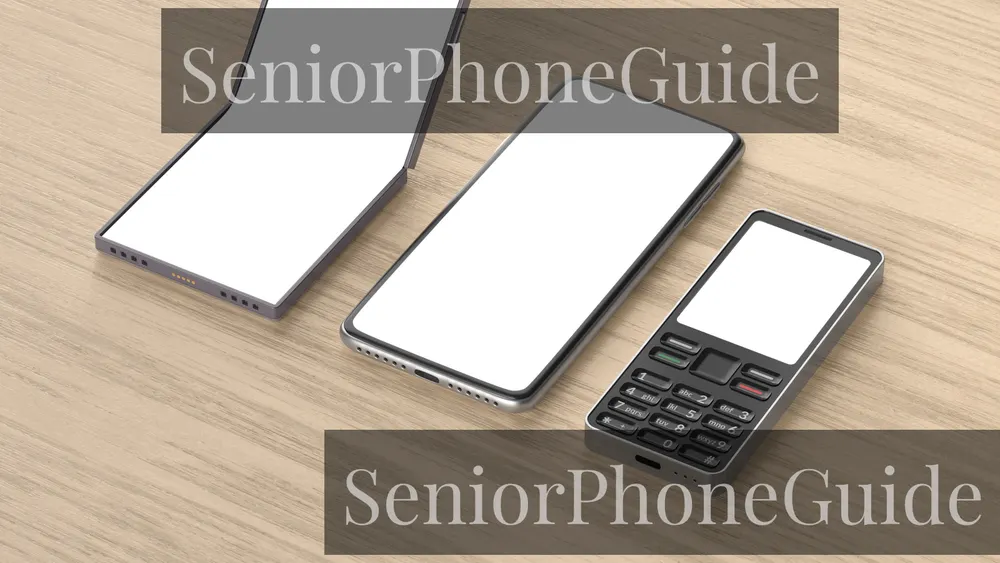
The Shortlist: Six Kinds of Senior Phone
Read the category that matches your person and skip the rest.
1. The simplest flip phone: big buttons, nothing extra
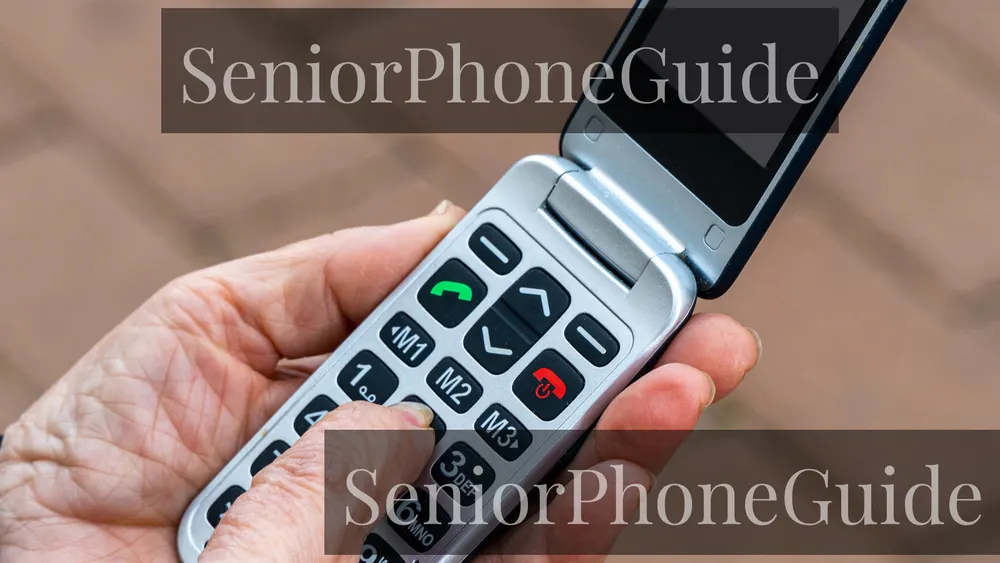
This is the phone for the senior who wants to call, answer, and text — and who finds a touchscreen a barrier rather than a feature. The design is deliberately old-fashioned in the best sense: a flip that opens to answer and closes to hang up, a physical keypad with large, tactile buttons, an outer screen showing who is calling, and a menu shallow enough to learn in an afternoon. Consumer Cellular's IRIS Easy Flip is the example rivals name most often here, and Lively's Jitterbug Flip line is the other recurring name.
The trade-offs are real. Texting on a traditional keypad is slower than on a touchscreen, because letters share keys and take multiple presses. The camera is a snapshot tool, not a serious camera. Some senior flips are tied to one carrier's service, which limits plan shopping later — check whether the phone is locked before buying.
Who should skip it: anyone who wants video calls, photo sharing beyond the occasional snapshot, maps, or apps. Those needs point to the smartphone categories below.
Skip this if: video calls, maps, or photo sharing matter. Buy it if: calls and texts are the whole job.
2. The senior smartphone: a smartphone with the maze removed
Senior smartphones exist for one reason: mainstream smartphones are powerful and confusing in equal measure, and the confusion is what stops seniors using them. A senior smartphone keeps the useful powers — video calls, photos, voice assistants, maps, messaging — and replaces the maze of icons with a short, readable list menu and large text. Lively's Jitterbug Smart line is the best-known example.
The honest limits matter here. If the senior later wants a mainstream app the simplified system handles awkwardly, frustration returns through a different door. Urgent-response and caregiver features usually cost extra on top of the plan, so the headline phone cost is not the whole cost. And a senior smartphone is still a touchscreen: a senior with severe tremor or very low vision may do better with physical buttons.
Who should skip it: a senior comfortable with a mainstream phone already, and a senior who cannot reliably use a touchscreen.
Skip this if touchscreens themselves are the problem. Buy it if the senior wants smartphone powers with a short menu.
3. The iPhone path: familiar, accessible, and built to last
For a senior who already uses an iPhone, or whose family all use iPhones, staying in that world is often the kindest choice. The familiarity is worth more than any feature list: the same charger, the same video-call app the grandchildren already use, the same family member able to help. Modern iPhones also carry a strong accessibility toolkit — large and bold text, VoiceOver, magnification, voice control, and a simplified mode that reduces the phone to large buttons for calls, messages, camera, and photos.
The limits are cost and size. A current iPhone is the most expensive path on this page, and the value only makes sense when the senior will actually use the camera, the video calls, and the long software support life. A large-screen model helps low vision but is harder to hold with small or arthritic hands — handle both in a store before deciding. Its safety features, including emergency SOS and crash detection, are genuine benefits for a senior living alone, but not a substitute for a medical alert system where one is needed.
Who should skip it: a senior on a tight budget who only calls and texts, and a senior who has never used a touchscreen.
Skip this if the budget is tight and the job is calls only. Buy it if the family is already on iPhone.
4. The Android value path: Samsung and the affordable middle
Android's senior case is value and choice. Samsung's affordable Galaxy A series is the name rivals cite most often for a mainstream smartphone without a flagship cost: a large, bright screen, a capable camera, and a mature accessibility menu. Motorola's affordable phones earn praise for clean software and battery life, and Google's Pixel line for camera quality and voice features.
The Android trap is variety itself. Two phones with similar names can differ in screen size, battery behaviour, and update life, and carrier versions can differ again. Buy the specific model you researched, and check the return window before paying. Android's accessibility settings are powerful but buried — large text, high-contrast text, magnification, and voice access all need turning on deliberately, ideally by the family member setting the phone up. Our Android text guide gives the exact steps.
Who should skip it: a senior who wants one company to call for phone and plan help, and a senior who finds settings menus stressful even with help.
Skip this if settings menus cause stress even with help. Buy it if value and a big screen matter together.
5. The camera-first phone: grandchildren, in focus
For many seniors, the camera is not a luxury feature. It is how grandchildren arrive in the kitchen: a photo from a school play, a video call from another state, a picture of a new puppy. The camera-first decision starts from the experience, not the specification sheet. Can the camera be opened in one tap from the lock screen? Is the shutter button large and easy to find without looking? Does the phone take the photo quickly, without a delay that loses the moment? Can the photo be sent to family in two taps, and a video call started from the same place? A phone that answers yes to all five is a better senior camera than a phone with a longer specification list and a fiddly camera app.
The rival guides disagree about which phone wins on camera, and that disagreement is itself useful: the difference between the top camera phones matters less than the difference between a camera that gets used and one that does not. Mainstream phones from Apple, Samsung, and Google all handle low light far better than a flip phone camera, which remains a snapshot tool. If photography is the reason for the purchase, buy a smartphone and spend the setup afternoon on the camera app.
Who should skip it: a senior who rarely takes photos and never video-calls.
Skip this if photos are an afterthought. Buy it if grandchildren photos and video calls are the point.
6. The memory phone: when faces replace numbers
This category is different from the rest, because the buyer is usually not the user. A senior with dementia or significant memory loss does not need more features; they need fewer steps, fewer choices, and fewer ways to get lost. The memory-phone answer is a phone where calling is one motion: press a familiar face, and the phone calls that person. Dedicated memory phones build the whole device around that idea, with caregiver controls that limit who can call in and who can be called, and with emergency calling kept simple and prominent. The RAZ Memory Cell Phone is the dedicated example rivals name most often, and it is designed for exactly this household.
The honest boundary of every memory phone is the point where faces stop being recognised. No phone solves that, and families should plan for it rather than discover it in a crisis. A memory phone also needs a caregiver to set it up and maintain it: photos to choose, numbers to assign, contacts to limit, and the phone itself to keep charged and in the same place. Our dedicated guide, best cell phones for seniors with dementia, covers the full picture, including when a phone stops being enough. Read it before buying in this category, not after.
Who should skip it: a senior who still dials numbers confidently.
Skip this if the senior still dials normally. Buy it if faces are the only reliable way to reach someone.
Plans: The Largest Group of Questions, Answered
If bills are tight, ask about Lifeline — the federal phone-assistance programme for low-income households — before you sign a plan.
Plans dominate the keyword research for this topic — more families search for the plan than for any single phone — and for good reason: the plan is the cost that repeats every month, while the phone is bought once. Getting the plan wrong costs more over a year than getting the phone slightly wrong. This section answers the plan questions in the order a family actually asks them.
Start with usage, not with advertisements. Note how the senior actually uses a phone: calls, texts, whether video calls happen on mobile data or on home Wi-Fi, and whether maps or streaming happen away from home. A senior who calls, texts, and uses Wi-Fi at home is a light data user, and a small prepaid plan is usually the honest fit. A senior who video-calls on mobile data and streams on the road is heavier, and an unlimited plan may earn its keep. Most overspending comes from buying unlimited data for a life lived mostly on Wi-Fi.
Prepaid versus postpaid is simpler than carriers make it sound. Prepaid means paying in advance, usually with no contract and no credit check, and the ability to leave at any time. Postpaid means a monthly bill after use, usually with a credit check, and sometimes device financing bundled in. For seniors, prepaid's virtue is honesty: the cost is known before the month starts and leaving costs nothing. Postpaid's virtue is device deals and family-plan discounts. Neither is universally better.
Two lines deserve a separate thought. Multi-line discounts are real, but they reward the whole account, not each line. Ask the carrier for the total account cost for the exact number of lines, with taxes and fees included, and compare that total — not the per-line headline — against the alternatives. Check what happens to the discount if one line leaves, because a discount that vanishes when a parent moves into care has a painful catch.
Finally, the question families ask most quietly: is there a genuinely cheaper plan for seniors, or is the senior label just marketing? The honest answer is both. Some carriers offer real age-based discounts, some offer plans that suit seniors without an age label, and some use the senior label on a plan that costs the same as the standard plan. The test is always the same: compare the total monthly cost for the same usage, with the same coverage, from at least two carriers, and ignore the label. Our dedicated guide, cheap cell phone plans for seniors, works through that comparison in full.
Carriers and the Verizon Question
Verizon is the carrier families ask about most, and it is also the carrier where the most careful reading is needed. Its standard unlimited and prepaid plans are available nationwide. But Verizon's discounted plan for customers aged 55 and older is only available to residents of Florida. That restriction changes the advice completely depending on where the senior lives, and it is the detail most advertising buries. If your parent lives in Florida and is aged 55 or older, ask Verizon directly about the current offer and its terms. Anywhere else, the honest comparison is between Verizon's standard and prepaid plans and other carriers.
The same careful reading applies to every carrier's senior claim. T-Mobile's senior offers have their own age and line conditions. AT&T's senior-friendly path is usually a standard plan paired with a senior-friendly phone rather than a distinct senior plan. Consumer Cellular and Lively build their whole service around seniors, with support and plans sized for light users, but their phones may be tied to their service. Visible, Mint, and other low-cost carriers run on the major networks and often undercut them on cost, but their support is usually online-first — fine for a tech-comfortable family member, less fine for a senior managing it alone.
One practical rule covers most carrier mistakes: never switch carrier and phone on the same day. Buy the phone, confirm it works on the current service, then move the plan.
Coverage, Rural Areas, and Keeping Your Number
Check the phone still works on today's networks — 2G and 3G shutdowns have already stranded older phones that looked fine on the shelf.
Coverage is the question that decides whether a good phone becomes a useless phone. A phone that works beautifully in a city store can fail in a rural kitchen or a thick-walled house, and no feature list fixes a missing signal. Before buying, check the carrier's coverage map for the senior's actual address — not the town, the address — and ask neighbours on the same carrier how the signal holds up indoors. Where the signal is weak indoors, Wi-Fi calling is the honest fix: calls travel over the home internet connection. Test it during the return window with a real call from the room where the senior actually sits.
Rural coverage deserves its own warning. Different carriers cover different rural areas well, and a carrier excellent in one valley can be absent in the next. The practical approach is a trial: buy from a seller with a real return window, test calls from the home, the garden, and the road the senior drives, and return the phone and switch carrier if the signal fails where it matters.
Keeping the number is the part families fear most and need fear least, provided the order is right. Do not cancel the old service before porting. Give the new carrier the exact account number and transfer PIN from the old carrier. Expect the move to take minutes to a couple of days, and keep both phones charged until the new one rings. If a landline number is moving to a mobile, allow longer, and warn the senior that the old phone may go quiet first — that gap is normal.
Cameras: What Actually Matters for Seniors
Camera questions form one of the largest groups in the research, and they split into two very different needs that guides often confuse. The first is taking photographs: grandchildren, gardens, pets, and everyday moments to keep and share. The second is video calls: seeing a grandchild's face and feeling present at a family event from another state. A phone can be good at one and weak at the other, so decide which matters more before comparing cameras.
For taking photographs, the senior-friendly test is physical. Open the camera from the lock screen in one tap. Find the shutter button without looking. Hold the phone steady, see the photo immediately, and send it to family in two taps. If any step needs a menu or a grandchild on the phone to explain it, the camera will be used less, whatever its specification. Low-light performance matters because school plays and evening gatherings are rarely well lit. Check both cameras: front for selfies and video calls, rear for everything else.
For video calls, the camera is only half the story. The other half is the app the family already uses, a speaker loud enough to hear a child, a screen bright enough for a sunny room, and a connection steady enough to hold the call. Set up the video-call app before handing the phone over, add the grandchildren as contacts with photos, and practise one call together. A senior who has made one successful video call will make the second alone.

Hearing, Vision, and Hands: The Accessibility Setup
Most senior phone frustration is not about the phone. It is about settings that were never turned on. Work through this accessibility pass together before judging any phone.
Hearing
Check the hearing-aid compatibility rating on the listing, and check Bluetooth streaming to the hearing aids your parent owns — the two are different, and both matter. Turn on live captions where the phone offers them, so a missed word appears as text. Set a loud, distinctive ringtone and vibration. Test a real call with the hearing aids in place, in a noisy room, during the return window. If the call buzzes or drops words, try the hearing aid's telecoil or streaming program before blaming the phone, and involve the audiologist if the problem persists.
Vision
Make the text larger, then larger again, until reading feels effortless rather than possible. Turn on bold text and increase contrast, and turn on magnification gestures for labels that stay too small. Put the phone, messages, camera, and contacts on the home screen and move everything else away, so the home screen is a short list of certainties rather than a grid of guesses. Our guides for increasing text size on iPhone and making text bigger on Android give the exact steps.
Hands
Shaky hands, arthritis, and stiff fingers change the phone decision more than most guides admit. Physical buttons forgive tremor in a way touchscreens do not, because a button can be found by feel and pressed deliberately. On a touchscreen, turn on touch accommodations where offered: longer hold duration, ignore repeated touches, and larger touch targets. Add a case with grip, and put a charging stand where the phone lives rather than a cable that must be threaded into a small port in dim light.
Samsung's Easy Mode deserves a name here, because it is the closest a mainstream Android phone comes to a senior phone without buying one. It enlarges text and icons, simplifies the home screen, and adds a touch-and-hold delay, so a finger resting on the screen does not fire a tap — the detail that matters for shaky hands. Turn it on in Settings during the setup afternoon; it costs nothing and is reversible. It adds no emergency button or caregiver portal, so it is a simplification, not a memory-phone substitute — but for clutter and small targets, it is often the whole answer.
On the iPhone side, the equivalent has a name too: Assistive Access. It reduces the phone to a handful of large buttons for calls, messages, camera, and photos, with a simplified layout that cannot be wandered out of by accident. Set it up together, with only the apps the senior actually uses, and test it on a real call before the return window closes. Like Easy Mode, it simplifies a phone the family already owns — the cheapest upgrade on this page, and often the kindest.
Dementia and Memory Loss: The Honest Guide
Dementia changes the phone question from "which phone is best" to "which phone still works when memory, judgement, and routine are fading". The answer is almost always simpler than families first expect. A senior with dementia does not need a phone that can do everything. They need a phone that can do one thing — reach family — without fail, without menus, and without a sequence that must be remembered.
The practical shape of that phone is a photo-button phone or a dedicated memory phone: familiar faces as buttons, one press to call, caregiver controls that decide who can call in, and a design that stays in one place and stays charged. The RAZ Memory Cell Phone is the dedicated example here. What matters more than the brand is the setup: four to six photos of the people who call most, tested one by one, with the senior present. A photo phone introduced early, while faces are still recognised, gives years of easy calling. Introduced late, after faces have blurred, it gives frustration, and families should hear that plainly.
The boundary every family must plan for is the point where a phone stops being enough. No phone notices a fall or calls for help when its owner cannot. When wandering, confusion at night, or an inability to recognise faces arrives, the conversation moves from phones to caregiver systems, medical alerts, and in-person care — planned calmly, not discovered in an emergency. Our full guide, best cell phones for seniors with dementia, covers the phone side, and our emergency SOS setup guide covers the safety settings that belong on any senior phone.
Deals: How to Judge One Without Getting Burned
Deals are the second-largest question group in the research, and the most dangerous, because a deal is where urgency replaces judgement. The defence is a short checklist applied before paying, not after.
First, separate the phone deal from the plan deal. A discounted phone tied to an expensive plan for two years can cost more than a full-price phone on a cheap plan, and the advertisement will never show that arithmetic. Work out the total cost — phone plus plan over the full commitment, with taxes and fees — against buying the phone outright with a cheap plan. Second, read the commitment: its length, the cost of leaving early, and whether the phone stays locked. Third, check the return window in writing, and test the phone properly inside it.
Holiday sales deserve a specific warning. Black Friday and seasonal sales genuinely include good phone offers, and they also include older models dressed as bargains and bundles where the free extras are worth little and the plan commitment is worth a great deal. The test is unchanged: the same total-cost arithmetic, the same return window, the same real-world test at home. A deal that fails any of those tests is not a deal.
Refurbished and previous-year models can be genuinely good value for seniors, because a senior's needs rarely require the newest processor or camera. The conditions are strict: a named seller with a written return window and warranty, battery health reported where available, confirmation of locked or unlocked status, and a full test in the first week. Skip any of them and the bargain becomes a gamble.
Scam Safety on a New Phone
A new phone for a senior is also a new target for scammers, and the first scam call often arrives within days of the number going live. Set the defences up on day one, agreed as a family, so the senior is not left to improvise under pressure.
Turn on spam and call-screening features, and silence unknown callers so unknown numbers go to voicemail. Agree the house rule: no genuine bank, tax office, or government agency demands payment or personal details by phone, and any caller claiming to be a grandchild in trouble gets hung up on and called back on a known number. Add a family safe word for genuine emergencies.
Keep the deeper scam help close at hand. Our senior scam checklist is the one-page version to print and keep by the phone. If an unknown number has already called, who called me explains how to check it, and is this message a scam covers suspicious texts. For the wider picture, read protecting personal information online for seniors.

The Family Setup Checklist
Most senior phone failures are setup failures, not phone failures. Work through these steps together, in order, before the phone is handed over. Budget an unhurried afternoon.
- Choose the phone by the person, not the advertisement. Run the 60-second picker above, and be honest about which row matches. If two rows match, choose the simpler one.
- Confirm the plan and the coverage before paying. Check coverage at the senior's address, confirm locked or unlocked status, and get the total monthly cost with taxes and fees in writing.
- Set up accessibility first. Large text, bold text, high contrast, loud and distinctive ringtone, vibration on, and the home screen reduced to phone, messages, camera, and contacts.
- Add contacts with photos. Every regular contact gets a photo, so calling is recognising a face rather than reading a name. Test each contact with a real call.
- Turn on scam defences. Spam screening, silenced unknown callers where offered, the house rule agreed out loud, and the family safe word chosen.
- Practise three tasks until they feel automatic. Answering a call, calling a family member, and taking and sending a photo. Three tasks done confidently beat ten tasks half-learned.
- Write the essentials on paper. The phone's unlock method, the carrier's support number, the return-window end date, and the family safe word — kept somewhere the senior and the family can both find them.
Then leave the phone with its charger where it will live, and resist adding apps in the first week. A phone that works for a week builds confidence.
Traps the Other Guides Skip
Fall detection and location tracking aren't standard on simple phones — check the specific model, don't assume the price buys them.
The rival guides we read for this page are useful, and they share blind spots worth naming.
First, the price trap. Rival comparison tables print device and plan prices checked months ago, with a footnote admitting they change. We print no prices for exactly that reason: compare live listings against each other, not against a table from last season.
Second, the rating trap. A single rating averages ease of use, camera, battery, and value into one number that describes no real senior. A phone rated highly for its camera can still be wrong for a senior who cannot use a touchscreen. Ignore the single number; match the reasons to your person.
Third, the carrier-lock trap. Several senior phones are sold tied to one carrier's service, and families discover it when trying to switch plans a year later. Ask about locked status before buying, every time.
Fourth, the feature-creep trap. Every guide lists features the senior will never use as if they were benefits. A senior who wants calls, photos, and video calls gains nothing from a long app list, and loses something real: every unused feature is a menu item that can confuse and a notification that can startle. For many seniors, simplicity is the value.
Fifth, the "best for everyone" trap. There is no best cell phone for seniors in general. There is a best phone for a senior who calls and texts, one for a senior who video-calls grandchildren, one for a senior with dementia, and one for a senior who is hard of hearing — and they are different phones. Any guide offering one winner for all seniors is selling certainty it does not have.
Related Guides on SeniorPhoneGuide
This flagship guide is the front door. The guides below go deep on one part of the decision each.
- Best big-button cell phone for seniors.
- Best flip phones for seniors.
- Landline phones for seniors with big buttons.
- Cheap cell phone plans for seniors.
- Best cell phones for seniors with dementia.
- Senior scam checklist.
- Senior phone scam statistics.
- Who called me.
- Is this message a scam.
- Protecting personal information online for seniors.
- Emergency SOS setup on iPhone and Android.
- How to choose a phone for a senior.
How We Researched This Guide
This guide was researched in October 2026 from manufacturer specifications, carrier plan pages, and the major senior-phone buyer guides, read critically rather than copied. We searched the head term and its plan, carrier, camera, and dementia variants, opened the leading rival pages, and mined their headings and questions. Where rivals disagreed, we reported the disagreement and gave the reader a test to resolve it.
What we did not do matters too. We did not hands-on test phones in a lab, and no sentence on this page should be read as claiming otherwise. We did not print prices, ratings, or review counts, because prices change and ratings average away the differences that matter. We did not accept any carrier's senior label at face value, and the Verizon Florida restriction is the clearest example of why. The keyword research behind this guide covered hundreds of related searches, and the groups it surfaced — plans above all, then carriers, cameras, dementia, deals, and accessibility — shaped the sections above.
Country note: the keyword research also surfaced groups for other countries, including Canada, the United Kingdom, Australia, and the Philippines. This guide covers the United States. Country-specific versions are future work, not part of this page, because plan availability, carrier rules, and senior discounts differ by country.

Red flags
A phone sold as “4G” that is really 3G, a carrier-locked phone sold as unlocked, and any phone whose battery cannot be replaced.
Frequently asked questions
- What is the best cell phone for a senior who has never used a smartphone?
- Start with the simplest phone that still does the job, not the most capable phone on the shelf. For calls and texts only, a big-button flip phone is usually the right first step. For photos, video calls, and maps, a simplified smartphone with a list-based menu is the better fit. The wrong first phone is the one that frightens its owner into leaving it in a drawer.
- Should I buy a flip phone or a smartphone for my parent?
- Buy a flip phone when calls and texts are the whole job and a touchscreen feels like a barrier. Buy a smartphone when video calls, photos, maps, or medical alert apps are genuinely part of daily life. A flip phone used every day beats a smartphone that never leaves the drawer. Match the phone to the life, not to what other families bought.
- What is the Verizon senior plan trap I should know about?
- Verizon markets a discounted plan for customers aged 55 and older, but that discounted plan is only available to residents of Florida. If your parent does not live in Florida, that plan is not an option, no matter what an advertisement seemed to promise. Outside Florida, compare Verizon prepaid and standard plans on their own terms, and against other carriers.
- Can my parent keep the same phone number when switching phones or carriers?
- In most cases, yes. Keeping a number when moving to a new carrier is called porting, and it is a routine request. Do not cancel the old service before the number has moved, because cancelling first can lose the number. Give the new carrier the exact account details from the old carrier, and expect the move to take minutes to a couple of days.
- Does an unlocked phone matter for a senior?
- An unlocked phone is not tied to one carrier, so it can move to another carrier later without buying a new phone. That flexibility matters when a plan stops fitting or coverage disappoints at home. A locked phone can still be a fine buy, but only when the family is confident about staying with that carrier. Ask before buying whether the phone is locked.
- What phone is best for a senior with dementia?
- The best phone for a senior with dementia is the one with the fewest steps between wanting to call and actually calling. That usually means a phone with photo buttons, where pressing a familiar face starts the call and there is nothing else to navigate. It also means a phone that cannot be easily lost, silenced by accident, or left uncharged. Our dedicated guide covers the point at which a phone stops being enough and a caregiver system has to take over.
- What should I look for in a phone camera for a senior?
- Look for a camera that opens fast, has one big shutter button, and shows the photo immediately. A good senior camera is about the experience, not the specification sheet: can a shaky hand hold the phone steady, can the screen be seen in sunlight, and can the photo be sent to family in two taps. A simple photo gallery matters more than editing tools that will never be opened.
- Will a new phone work with hearing aids?
- Most modern phones are built to work with hearing aids, but the details still deserve a check before buying. Look for the hearing-aid compatibility rating on the listing, and check whether the phone supports Bluetooth streaming to the hearing aids your parent already owns. If possible, test a real call with the hearing aids in place during the return window.
- How do I make a smartphone easier for a senior to use?
- Start with the built-in accessibility settings before buying any extra app. Make the text larger, turn on bold text, increase button contrast, and put the phone app, messages, camera, and contacts on the home screen with everything else moved away. Voice assistants and voice typing remove most of the typing burden. Set it all up together, then practise each task twice.
- Are cheap cell phone plans for seniors actually cheaper?
- Sometimes, and sometimes the cheap headline hides the real cost. A plan is only cheaper if it covers the calls, texts, and data the senior actually uses, at the address where they actually live, without surprise fees. Prepaid plans with no contract are often the honest bargain for light users, while heavy video-call users may do better on unlimited. Compare the total monthly cost for the same usage, not the advertised headline.
- What is the best cell phone plan for a senior who barely uses data?
- For a senior who mainly calls and texts, a small prepaid plan or a senior plan with a modest data allowance is usually the sensible starting point. Paying for unlimited data that never gets used is wasted money, and many light users are comfortable on Wi-Fi at home. The exception is a senior who video-calls on mobile data away from home. Start small, watch one month of real usage, then adjust.
- Is it safe for a senior to buy a refurbished phone?
- A refurbished phone can be good value, but only from a seller with a clear return window and a written warranty. Check the battery health where the seller reports it, confirm locked or unlocked status, and test every function in the first week: calls, texts, camera, charging, and speaker. If any fail, return it inside the window. A phone with no return window is not a bargain.
- How do I protect my parent from phone scams on a new cell phone?
- Set up the defences before the first scam call arrives, not after. Turn on spam and call-screening features, silence unknown callers where that setting exists, and agree one house rule: never trust a caller claiming to be the bank, the tax office, or a grandchild in trouble — hang up and call back on a known number. Add a family safe word for genuine emergencies.
- What if my parent refuses to learn a new phone?
- Do not start with lessons. Start with one thing the phone does that the old phone cannot, ideally a video call with a grandchild. Set the phone up completely first, with contacts, photos, and large text already in place, so the first experience is success rather than setup. Keep sessions short, practise the same three tasks until they feel automatic, and accept that a simpler phone beats a capable phone that stays in a drawer.
- When should I choose a landline instead of a cell phone?
- Choose a landline when the senior stays mostly at home, loses or forgets to charge a mobile phone, or feels safest with a phone that never moves and never updates itself. A corded landline also keeps working in a power cut on a traditional line. Many families end up with both: a landline at home and a simple cell phone for leaving the house.
Verdict: the simplest phone that still does the job your parent actually wants done. Next step: run the 60-second picker, then test the phone at home inside the return window.